Products
A product is anything customers can book: a session, a timed-entry ticket, a party package or a course. Each product belongs to one site and has its own duration, slot timing, party size limits, price and resources.
Open Catalog → Products to see and edit your products.
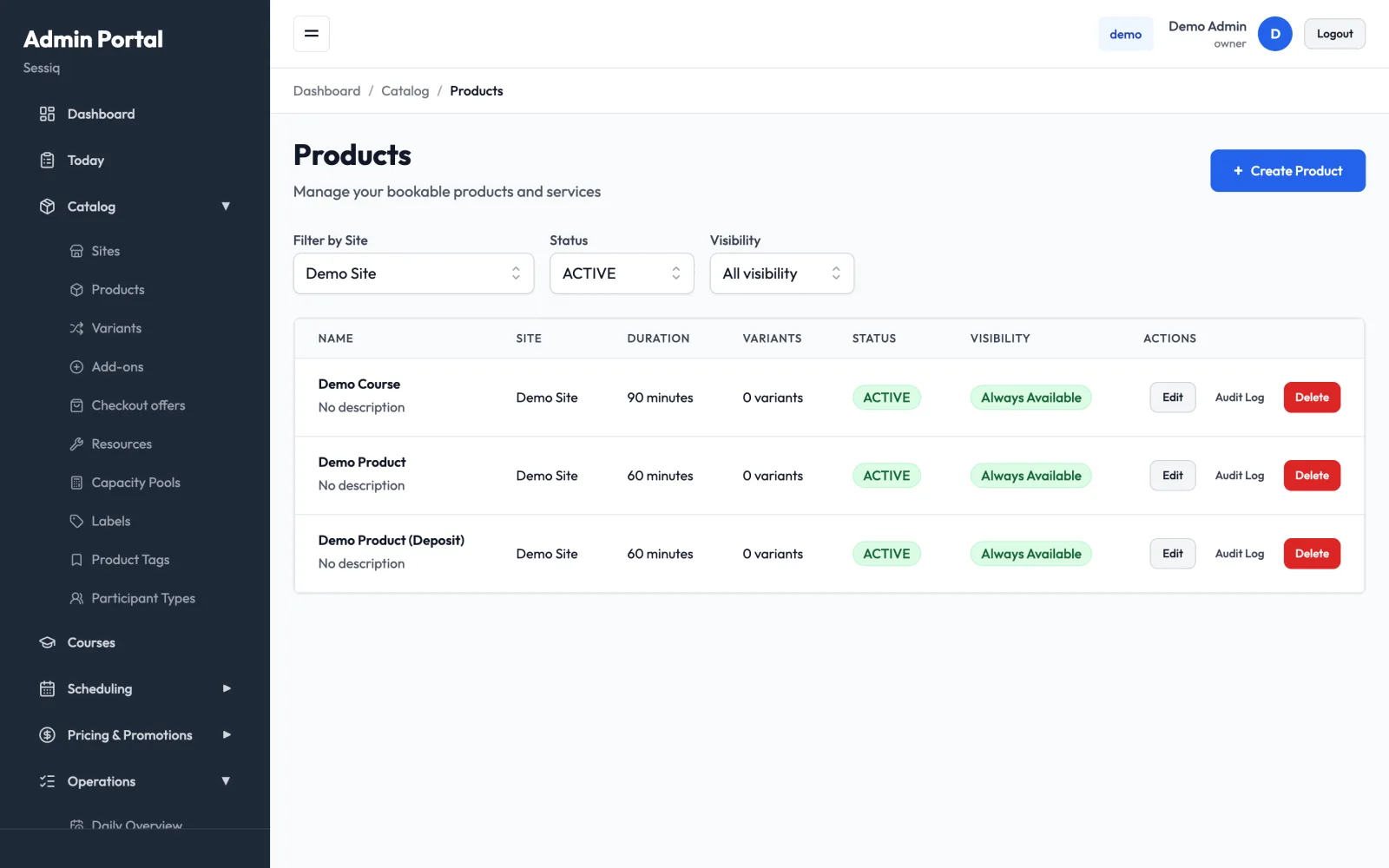
Find a product
The list has three filters:
- Filter by Site — show the products of one site, or All Sites.
- Status — ACTIVE or INACTIVE products.
- Visibility — Visible or Hidden products.
Each row shows the product's site, duration, number of variants, status and a visibility badge (Always Available, Date Range, Days of Week, Custom Schedule or Hidden). Use Edit to open the product, Audit Log to see who changed what, and Delete to remove it.
To take a product off sale without losing its settings, clear Active or turn on Hide Product instead of deleting it.
Create or edit a product
- Click Create Product, or Edit on an existing row.
- Work through the tabs: Basic Info, Images, Scheduling, Capacity, Pricing, Resources and Visibility. After the product is saved, two more tabs appear: Labels and Add-ons.
- Click Create Product (or Save Changes).
The Images tab also needs a saved product. On a new product, save once and then reopen it to add images, labels and add-ons.
Basic Info
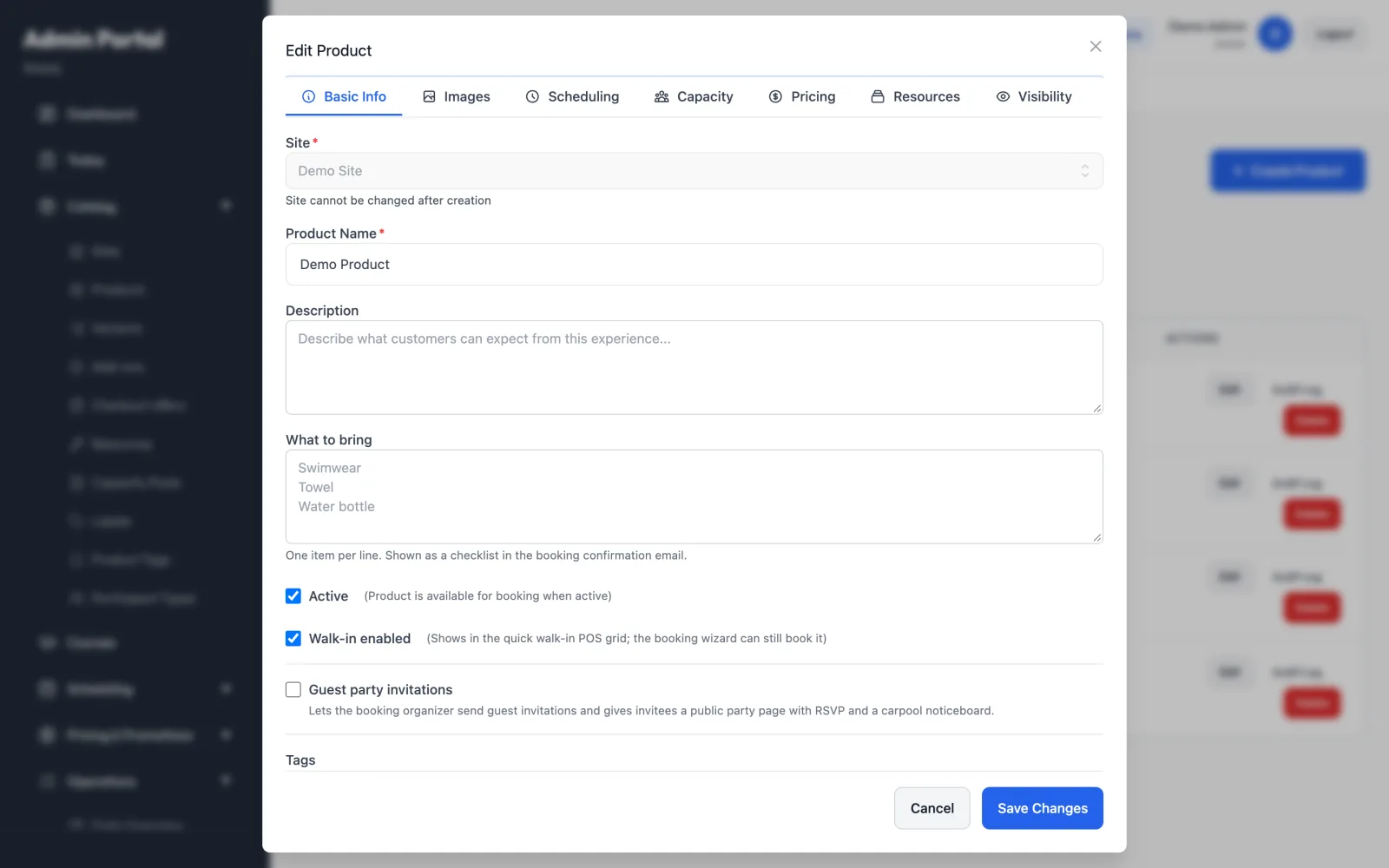
- Site — where the product is sold. It can't be changed after creation.
- Product Name and Description — shown to customers.
- What to bring — one item per line. It's shown as a checklist in the booking confirmation email.
- Notify staff when a booking is confirmed — emails staff about every confirmed online booking of this product, at any hour, so bookings made outside opening hours aren't missed. The email shows the date and time, party size and the customer's contact details, with a link to the booking. Put up to 10 addresses under Recipients, one per line. If you leave it empty, the email goes to the site's email address, or to the business's billing email if the site has none. Bookings staff create themselves (walk-in, phone or admin) don't send an alert.
- Active — the product can be booked only while this is on.
- Walk-in enabled — shows the product in the quick walk-in sales grid. See Walk-in sales.
- Guest party invitations — lets the person who booked send invitations to guests. Invitees get a public party page with RSVP and a carpool noticeboard. When it's on, fill in “Good to know” for the party page (drop-off, what to bring, safety notes). You write it once per product.
- Tags — pick the product tags used for filtering on your booking site. Tags are managed under Catalog → Product Tags.
Tags also set each booking's event type in reports and BI exports. A product tagged
schoolbooks as a school group,corporateas corporate,partyas a birthday andprivateas a private event. When a product has several of these, the order is school group, then corporate, then birthday, then private: aparty+privateproduct counts as a birthday. Products without these tags book as general. The type is set when the booking is made, so changing a product's tags later doesn't reclassify existing bookings.
Images
Upload up to 20 images (JPEG, PNG, WebP or GIF, up to 10 MB). A 16:9 landscape image, at least 1600×900 px, works best. Every image needs Alt Text, a short description for screen readers. The first image is the Cover Image in listings. Reorder images with the arrow buttons, or pick Set as cover image.
Scheduling
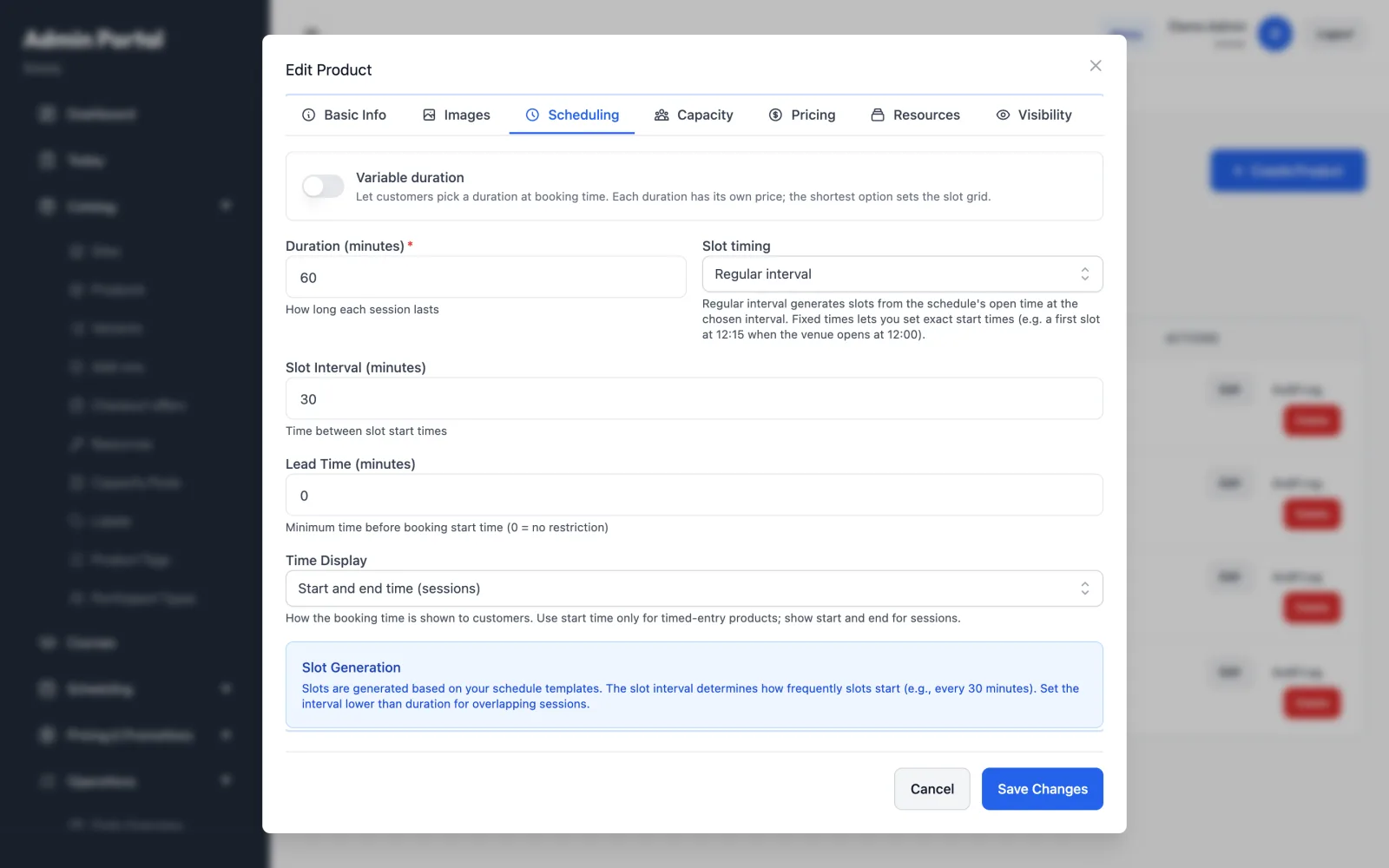
- Variable duration — lets customers pick a length when they book. Add each option with Add duration, giving its Duration (minutes) and Price (€). List durations from shortest to longest, with no duplicates. The shortest one sets the slot grid. Variable durations can't be combined with variants.
- Label (optional) — name an option in your customers' terms, for example "1 peli", "2 peliä" (up to 40 characters). A labelled option shows the label first and the length after it ("2 peliä · 1 h") in the booking widget, the customer portal, booking emails and the admin booking views. Leave it empty to show only the length. Labels are a single text, like product names, so write them in the language your customers book in.
- Duration (minutes) — how long each session lasts (used when variable duration is off).
- Slot timing:
- Regular interval — slots start at the schedule's opening time and repeat every Slot Interval (minutes). Set the interval lower than the duration for overlapping sessions.
- Fixed times — you list exact start times with Add time, for example a first slot at 12:15 when the venue opens at 12:00. Times outside a day's opening hours are skipped.
- Lead Time (minutes) — how long before the start a slot stops being bookable. 0 means no limit.
- Time Display — Start and end time (sessions) or Start time only (timed-entry). This controls how the time is shown to customers.
Slots are generated from your weekly schedules. See Schedules.
Changing a product's duration or slot timing doesn't reshape slots that already exist. After a change, run Regenerate slots on the Schedules page.
Capacity
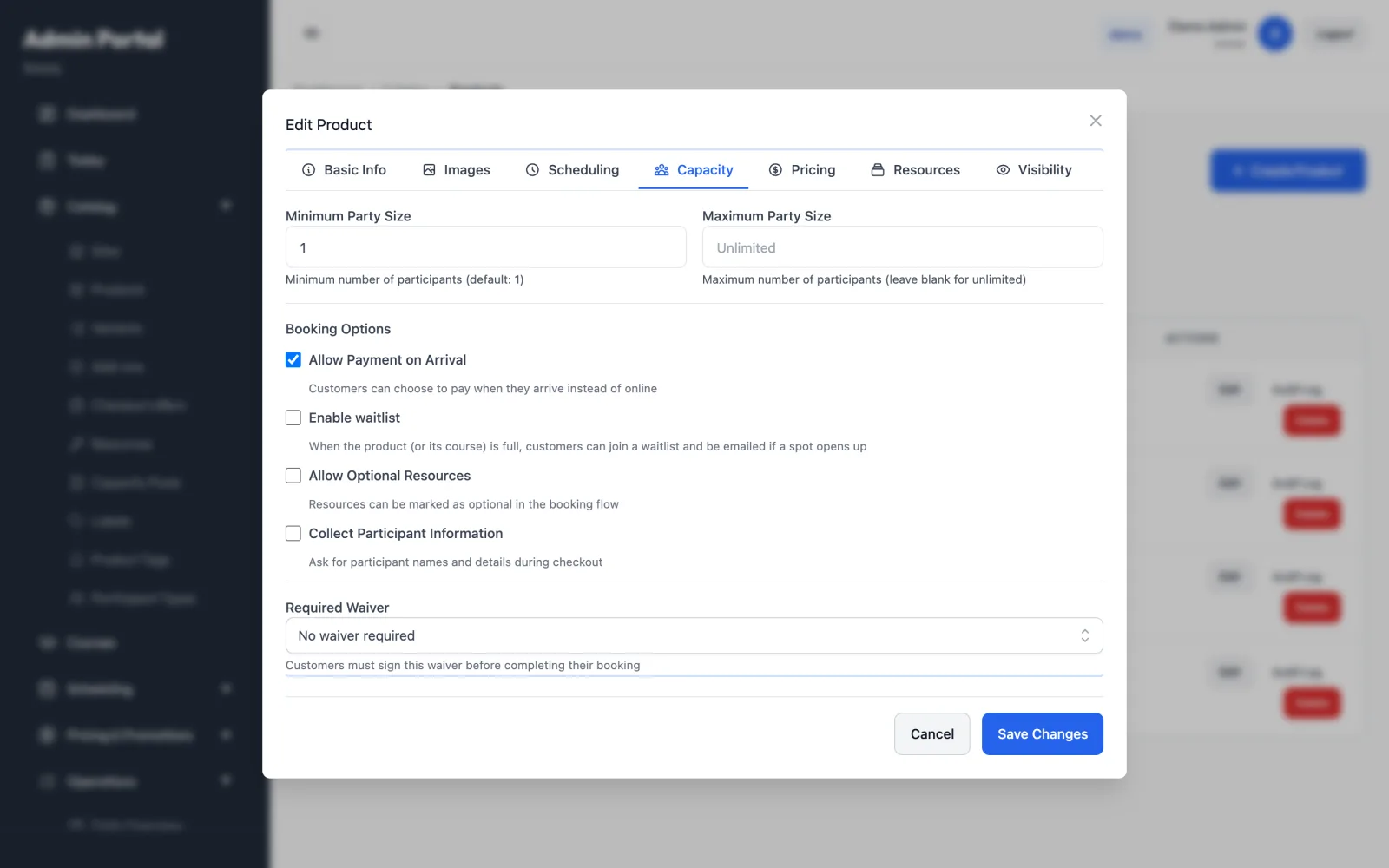
- Minimum Party Size and Maximum Party Size — leave the maximum blank for no limit.
- Booking Options:
- Allow Payment on Arrival — customers can choose to pay at the venue instead of online.
- Enable waitlist — when the product (or its course) is full, customers can join a waitlist and get an email if a spot opens. See Waitlist.
- Allow Optional Resources — resources in the booking sequence can be optional.
- Collect Participant Information — asks for participant names and details at checkout.
- Required Waiver — the waiver customers must sign before completing the booking. See Waivers.
Pricing
Choose a Pricing Model:
- Per person (× party size) — the base price is multiplied by the number of participants.
- Flat (once per booking) — the base price is charged once, which suits private events and buyouts.
Then set the Base Price and VAT / Tax Rate (%). Leave the tax rate blank to use the site's default. Under Advanced Pricing Options you can attach a Price Ruleset (which overrides the base price) and turn on Enable Per-Participant-Type Pricing. The Deposit section lets you take a partial payment to confirm and collect the balance later. See Pricing for rulesets and participant-type prices.
Resources
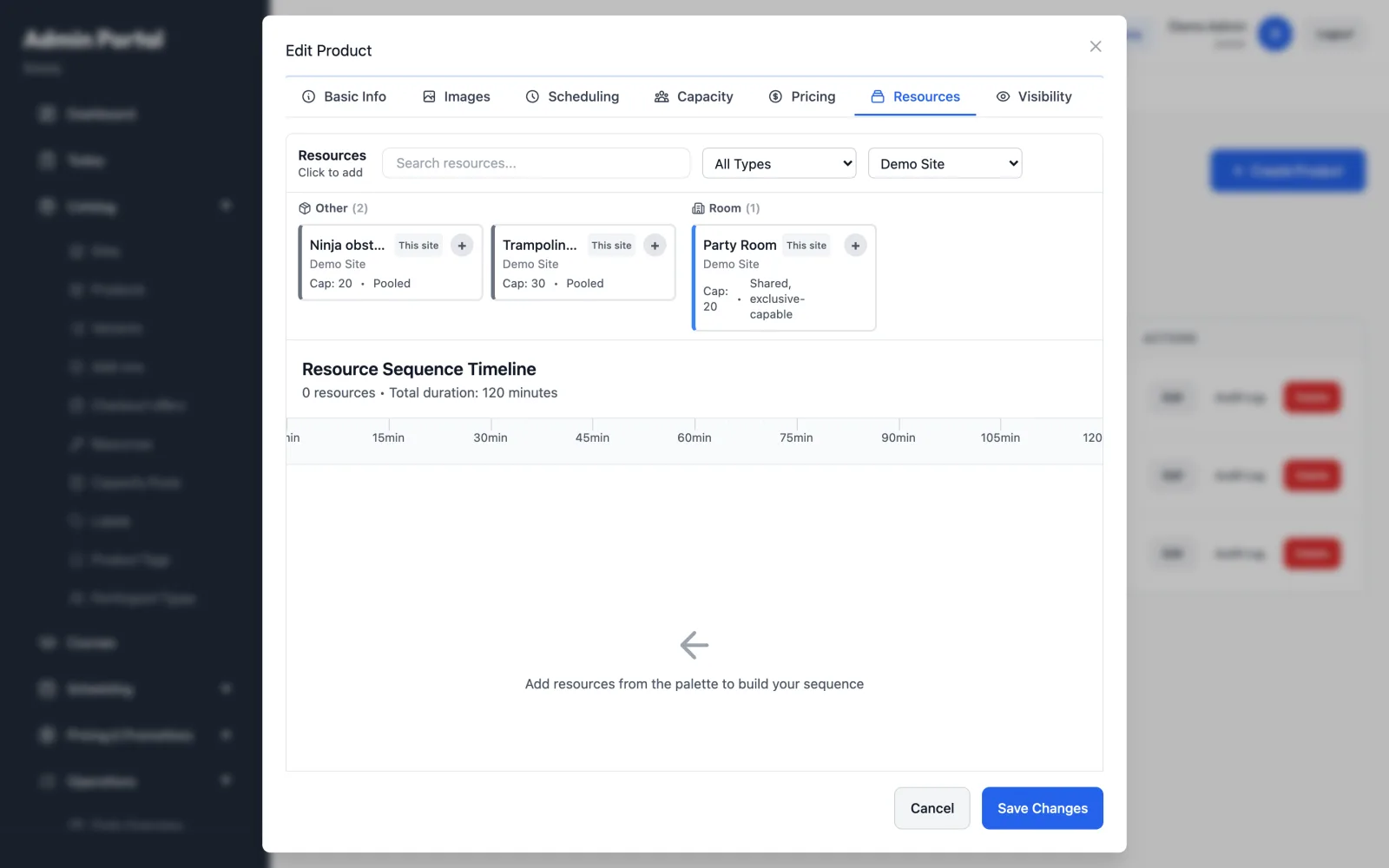
The Resources tab defines which rooms, equipment or staff a booking uses, and when.
- Click a resource in the palette at the top to add it to the Resource Sequence Timeline. Use the search box and the type and site filters to narrow the palette. Resources from your other sites appear only if they are shared across sites.
- Drag a block vertically by its left handle to reorder it. Drag it horizontally by its top bar to move it along the timeline. Blocks that overlap in time run in parallel.
- Click a block to open Edit Resource Block and set:
- Duration (minutes), Setup Time (minutes) and Cleanup Time (minutes).
- Required — clear it to make the resource optional. This needs Allow Optional Resources on the Capacity tab.
- Exclusive — buy out this resource for the booking — appears for resources that can be bought out. The booking then claims the whole resource for its time, blocking other bookings. For a resource set to Exclusive, this is always on.
- Click Save Changes on the product to keep the sequence.
Room selection. In the block editor, choose Let the customer choose one room instead of Use this fixed resource. Then tick at least two rooms of the same type. At checkout the customer picks one, or the system assigns the best-fitting room. The block then shows as Customer chooses a room.
Room fee. A room block can charge for the room the booking gets. In the block editor, tick Room fee and set:
- Amount (€, incl. VAT) — the price of every room in the block.
- Charged — Per booking (once) or Per person (multiplied by the party size).
- VAT — the fee's own VAT rate (25.5 % by default), which can differ from the product's rate.
- Price per room — for a block where the customer chooses a room, an optional price per room, for example a bigger room that costs more. Leave a room blank to use the amount above.
The fee is added to the booking as its own price line named after the room, for example "Juhlatila 2 59,00 €". At checkout the customer sees each room's fee in the room chooser and a note under the times ("Hintaan lisätään tilavuokra alkaen 49,00 €" when rooms cost different amounts). The estimated total includes the chosen room's fee. The calendar and the times still show the product's own price. Booking-wide discount codes also reduce the room fee; codes limited to certain add-ons don't. A visit pass covers the people, not the room, so the customer still pays the room fee. Clear Room fee to stop charging it; bookings made before keep their room line.
The fee belongs to the product, not to the room, so the same room can be free in another product (for example a private party whose price already includes the room).
Room fee or required add-on? Use a room fee when the price depends on the room, or when the customer chooses the room. A required add-on suits a fixed extra that has nothing to do with which room is booked. To switch a product from a required "Juhlatila" add-on to a room fee, set the room fee and remove the add-on from the product (Labels and Add-ons) in the same session, then save. If you set only the fee, customers pay for the room twice.
See Resources & rooms for sharing modes and capacity.
Visibility
- Hide Product — hides the product everywhere without deleting it.
- Visible In — choose the places where the product appears: Public Booking Portal, Admin Panel, API Access and Mobile App.
- Availability Schedule — Always Available, Available During Date Range (start and end date), Available on Specific Days of Week, or Use Custom Schedule.
Labels and Add-ons
- Labels lets you attach slot labels to each variant, and optionally make one the default label for all of that variant's slots.
- Add-ons lists the extras offered with this product. Add Add-on lets you pick several add-ons at once, filter them by group, and set Required, Maximum Quantity Override and Sort Order. See Add-ons.
Related catalog lists
These pages under Catalog feed into products:
- Variants — versions of a product with their own Base Price (EUR), VAT Rate (%), Duration Override (minutes), Max Capacity and SKU. A product that uses variable durations can't have variants.
- Labels — slot labels such as "Early Bird", each with a code, category, color and icon. The Slot Rules tab applies labels automatically by time, day or date, and Calendar View shows labels on slots.
- Product Tags — tags used for the storefront filter and product cards. Retire a tag to remove it from the filter and product form. Products that already have it keep showing it.
- Participant Types — categories such as Adult, Child or Senior, with an optional age range. They're used for per-participant-type pricing.
- Sites — your locations, with timezone, contact details, allowed widget origins and branding overrides. See Settings & branding.