Checkout offers
Checkout offers are special deals shown to customers in an Offers step just before they review their booking. An offer sells one of your existing add-ons, usually at a lower price. Offers work across products, so one offer can appear on every booking.
Open Catalog → Checkout offers.
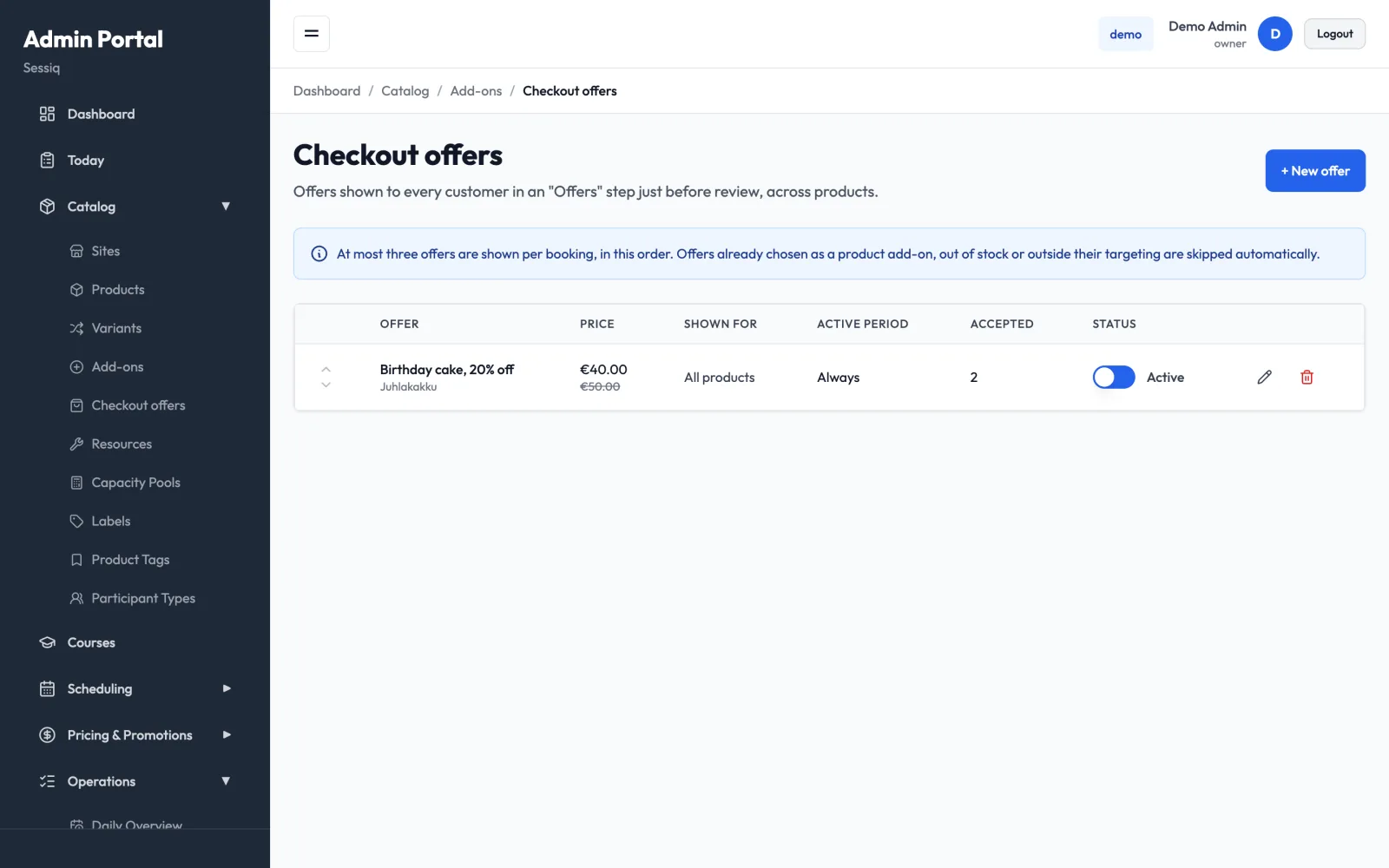
How offers are shown
- At most three offers are shown per booking, in the order of the list.
- An offer is skipped automatically in these cases:
- the customer already chose the add-on as a product add-on
- the add-on is out of stock
- the booking falls outside the offer's targeting
- the underlying add-on is inactive (the list then shows Add-on is inactive — offer not shown)
The list shows each offer's Price, who it's Shown for, its Active period, how many bookings have Accepted it, and its Status.
Create an offer
- Click + New offer.
- Choose the Add-on to sell. The add-on's VAT, stock and prep-sheet entry apply. Resource add-ons and add-ons with a percentage price can't be offered.
- Enter the Offer price (€). Leave it blank to sell at the add-on's normal price.
- Show normal price struck through — shows the add-on's current price crossed out next to the offer price. It only appears when the offer price is lower.
- Under Texts, you can give the offer its own Title and Description in Finnish and English. Empty fields use the add-on's name and description.
- Under Who sees it, narrow the audience. Leave a field empty to include everyone:
- Sites, Products and Product tags
- Visit date from / Visit date to — the date of the visit, not the date of purchase
- Min. group size / Max. group size
- Under When it is shown, set Show from and Show until (optional). With neither set, the active period shows Always.
- Leave Active on and click Save.
caution
The struck-through price is always the add-on's current price. If you changed that price during the last 30 days, it may not be the lowest price of the last 30 days, which EU price-indication rules require. In that case, turn Show normal price struck through off.
Order, pause and delete offers
- Order — use the up and down arrows at the start of each row. Only the first three offers that apply to a booking are shown, so put your most important offers at the top.
- Pause — flip the Status switch to make an offer inactive without deleting it.
- Edit — click the pencil icon.
- Delete — click the bin icon. The offer stops showing immediately. Bookings that already accepted it keep their price.
Tips
- Create the add-on first on the Add-ons page. You can keep it off your products if you only want to sell it as an offer.
- Use Visit date from/to for seasonal offers, such as a holiday treat for visits in December.
- The Accepted count helps you compare offers. Swap out offers that nobody takes.