Schedules
Schedules set when your products can be booked. Weekly schedules give the regular opening hours. Closed dates close whole days, and schedule overrides set special hours for a period. Bookable slots are generated from these, following each product's slot timing (see Products).
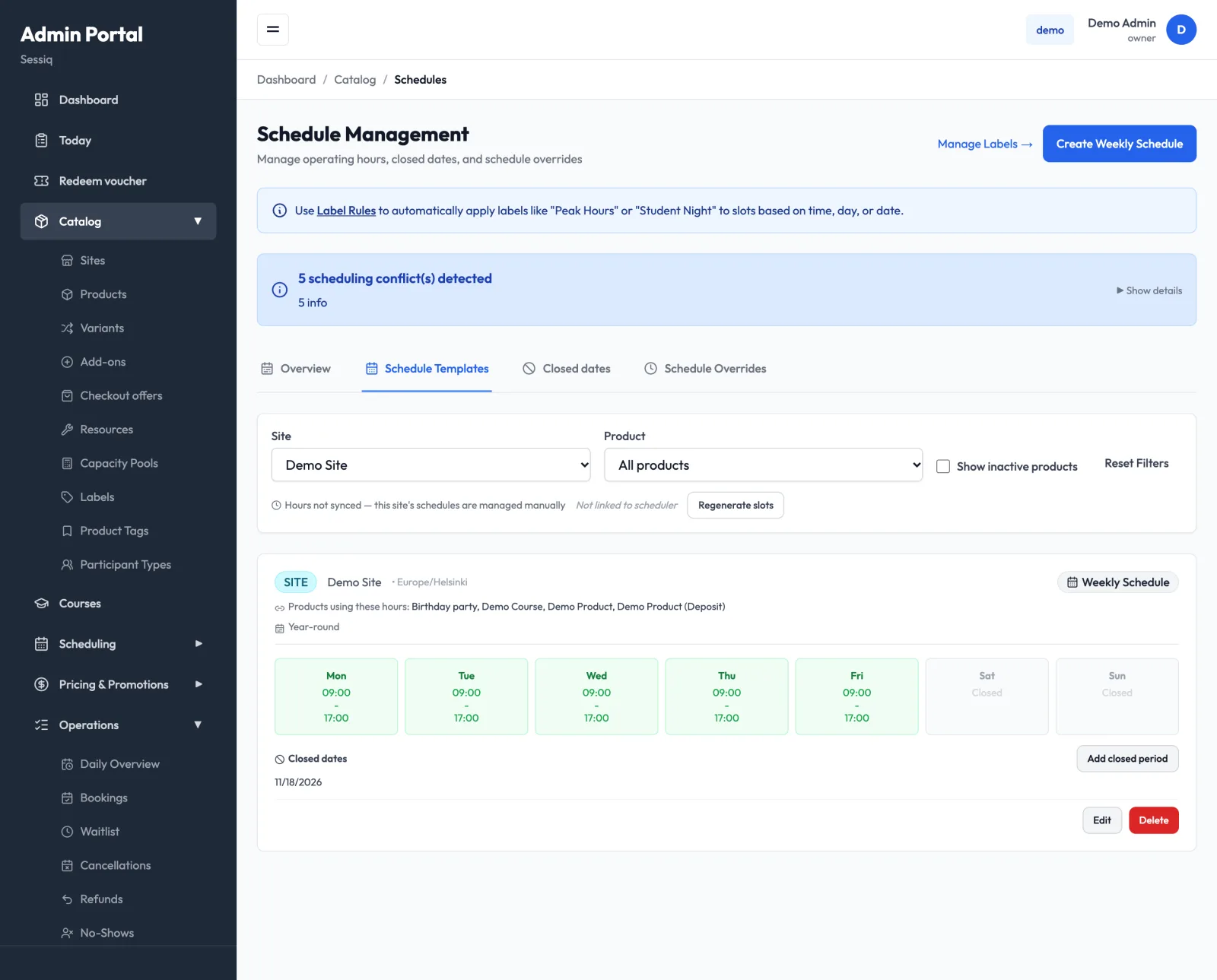
Open Scheduling → Schedules. The page is called Schedule Management and has four tabs: Overview, Schedule Templates, Closed dates and Schedule Overrides.
Site and product schedules
Every schedule applies either to a Site (all products) or to a Specific product. A product without its own schedule uses its site's opening hours. Add a product schedule only when that product needs different hours.
Use the Site and Product filters at the top of each tab to focus on one scope. Reset Filters clears them.
Check the effective schedule (Overview)
The Overview tab shows a month calendar of the hours that actually apply after all schedules, overrides and closed dates are combined. Select a site or product first. Days are marked Open, Override or Closed. A product with no schedule of its own shows Inheriting site hours (no product-specific schedule). Use the arrows to move between months.
Create a weekly schedule
- On the Schedule Templates tab, click Create Weekly Schedule.
- Under Apply schedule to, choose Site (all products) or Specific product, and select the site or product. The timezone comes from the site automatically.
- Optionally choose a Slot Label to apply to all slots from this schedule.
- Optionally set a Season window. Leave both dates empty for a year-round schedule. You can also set only one side.
- Click Next: Set Hours. Tick the days that are open and set Start Time and End Time. Copy Monday to Weekdays and Copy Saturday to Weekend save typing.
- Click Save Schedule.
To change the hours later, click Edit on the schedule card. In the editor, each day can have more than one window: use Add window for a split day (for example 10:00–13:00 and 15:00–20:00) and Remove to drop one. Windows on the same day must not overlap.
Seasonal schedules
A schedule with a season window replaces the base schedule on its dates. It doesn't add to it. During the season, only the days listed in the seasonal schedule are open, and blank days are closed. Schedule cards show Year-round or the season dates. A base schedule that is replaced during a season carries the note A seasonal schedule below replaces these hours on its dates.
Slots for a future season appear once the booking horizon reaches those dates.
Close dates (Closed dates)
Use closed dates for holidays, maintenance or private use: nothing can be booked on those days.
- On the Closed dates tab, click Add closed dates.
- Under Close, choose a site (all its products) or one product.
- Pick the Reason: Closed, Holiday, Maintenance or Other.
- Set the Date Range and click Create.
After saving, the confirmation tells you how many bookable times were removed. Times that already have bookings are kept for those bookings, but are no longer sold.
You can also add closed dates straight from a weekly schedule. Each card on the Schedule Templates tab lists that site's or product's upcoming Closed dates (or No upcoming closed dates). A product card also shows its site's closures, marked whole site. Click Add closed period on the card to open the same form with the site or product already filled in.
To close a single room rather than the whole site, use Room closures.
Special hours for a period (Schedule Overrides)
Use an override when the hours are different for a while, such as a summer week or a holiday season.
- On the Schedule Overrides tab, click Create Override.
- Choose the scope and the Date Range.
- Pick the Recurrence: One-time (specific dates only) or Yearly (e.g., same weeks each year).
- Click Next: Set Hours, set the weekly hours for the period, and save.
An override is shown as a Weekly Override group. Use Edit Individual Days to change single days, or Delete All to remove the whole group. If two overrides overlap, you're warned first. Overlapping overrides are merged day by day, which can give unexpected hours.
Regenerate slots
Editing a schedule doesn't change slots that already exist. After changing hours, a season, or a product's duration or slot timing, rebuild the slots.
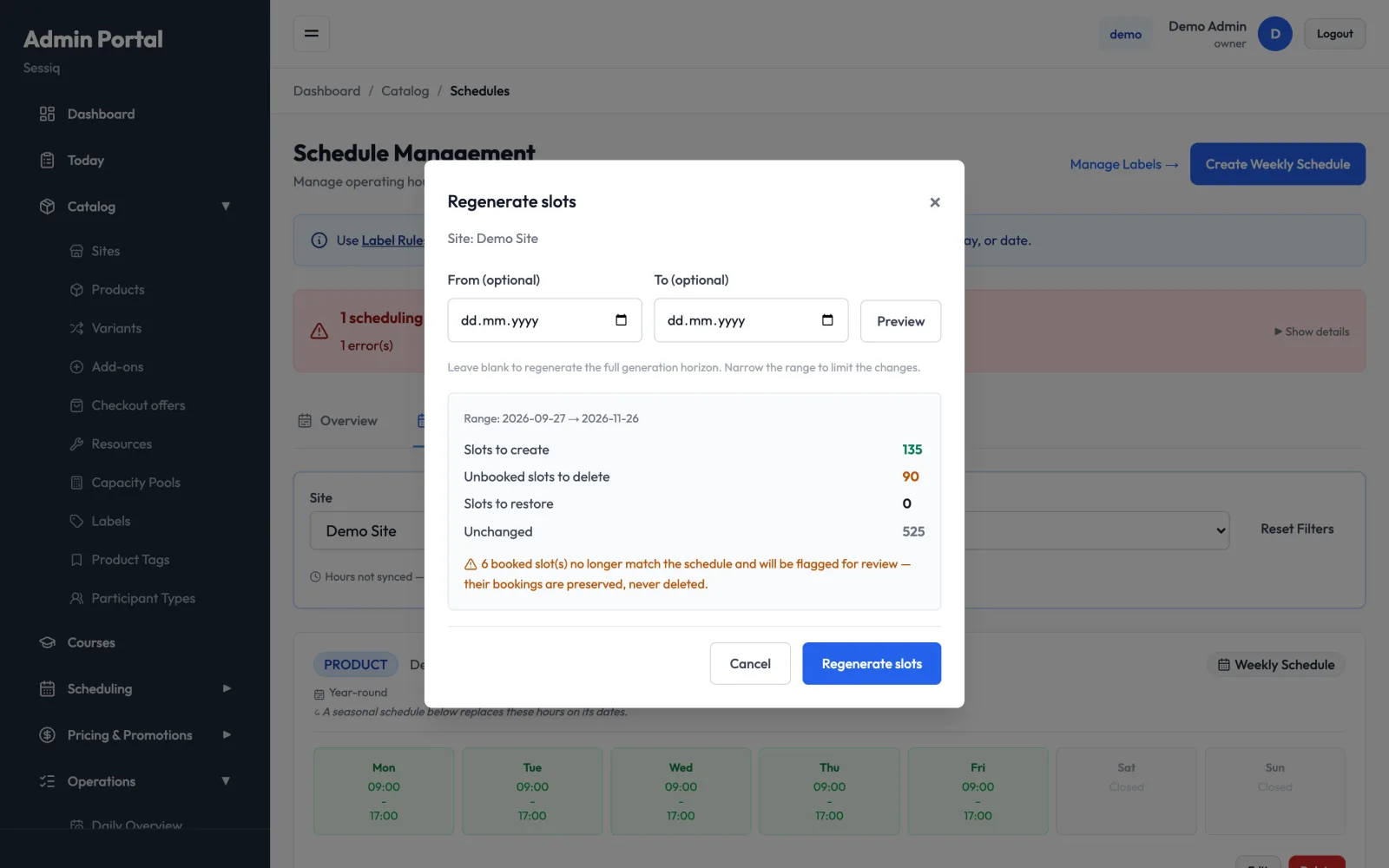
- Select a site, or a site and a product, in the filters. The Regenerate slots button appears under them.
- Click Regenerate slots. Optionally set From and To to limit the dates. Blank means the full booking horizon.
- Click Preview. You'll see:
- Slots to create
- Unbooked slots to delete
- Slots to restore
- Unchanged
- Read any warning, then click Regenerate slots.
Booked slots are never deleted. If a booked slot no longer fits the new schedule, it's flagged for review and its bookings are kept. Move or cancel those bookings yourself.
Sites with synced opening hours
When you select a site, the filter area shows when its hours were last synced:
- Hours last synced: … with a Refresh site schedules button — the site's hours come from a connected hours calendar. Synced schedules have a Synced badge. Edit the hours in that calendar, then click Refresh site schedules. This refreshes the schedules and closed dates and regenerates the slots.
- Hours not synced — this site's schedules are managed manually and Not linked to scheduler — the site isn't connected. You manage its schedules on this page.
Scheduling conflicts
If schedules clash, a banner at the top shows how many conflicts there are. Click Show details to see the affected items. It warns about:
- overlapping schedule templates on the same day
- overlapping closed dates
- overlapping overrides
- closed dates that block scheduled hours
Fix or delete the overlapping entry, and the banner clears.
Capacity overrides
Scheduling → Capacity Overrides lets you add capacity for a while, for example to squeeze an extra group into a full slot.
- Click + New Override and choose the Override Type:
- Time Slot — pick the site, Slot date and slot.
- Product (All Slots)
- Specific Booking
- Enter the New Capacity, which must be higher than the original. Optionally set Expires At; leave it empty for a permanent override.
- Give a Reason (at least 10 characters) and click Create Override.
The list shows each override's target, capacity change, risk level, status, expiry and approver. It can be filtered by Status, Type and Risk Level. Revoke restores normal capacity immediately and asks for a reason. Remove permanently deletes the record.
Labels on slots
Use Manage Labels (or the Label Rules link in the blue banner) to apply labels such as "Peak Hours" or "Student Night" to slots automatically, by time, day or date. You can also pick a slot label when creating a weekly schedule.
A label rule can also skip single dates. Under Except on, pick a date and click Add date; remove one with ×. On an excluded date the rule labels no slots at any time, so the label's badge and any price rule tied to it don't apply that day, for example on Christmas Eve or another public holiday. The rule's Upcoming dates preview leaves excluded dates out, and the rules list shows them after the days, for example Except 24.12., 31.12. +2. Bookings already made keep the price they were booked at.