Today and check-in
Two pages cover the front desk during a shift:
- Today shows what's happening today: how many guests are booked, who has arrived, who is still to come, and anything that needs your attention.
- Check-in is where you welcome guests. Scan the QR code on their booking, or find them in the list, and mark them arrived with one tap.
Both are built for phones and work just as well on a computer. On a phone they are the first two tabs in the bottom bar. On a computer, Today is in the sidebar. See Getting around the admin.
The Today page
Open Today from the sidebar or the tab bar.
Choose a site
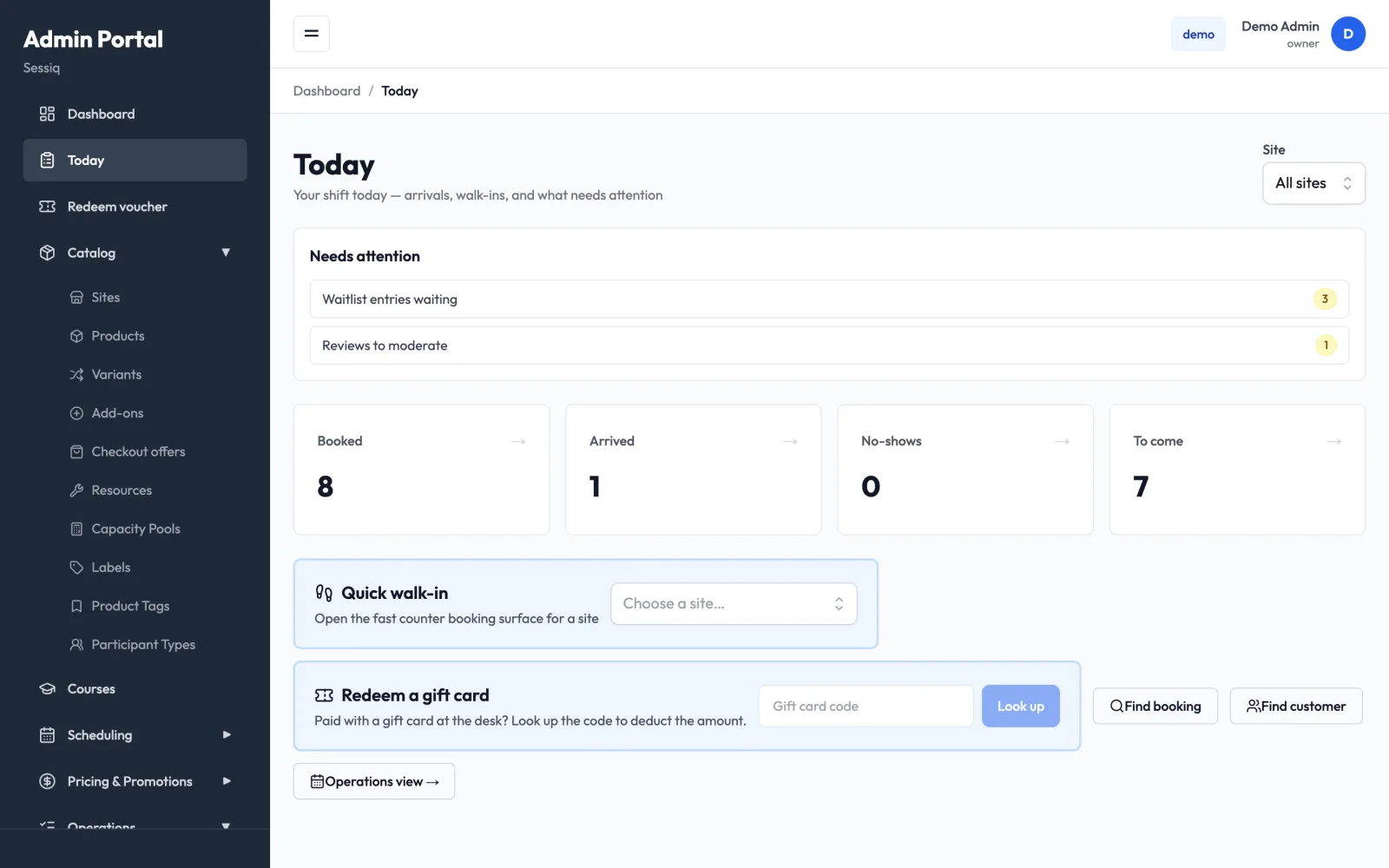
If your business has more than one site, a Site selector appears at the top. Leave it on All sites to see everything, or pick one site to see only its bookings. The counts and arrivals on the page follow your choice. The selector only lists sites you have access to.
Needs attention
The Needs attention panel collects things to act on today. Each line shows a count and links to the page where you can deal with it:
- Waitlist entries waiting: customers waiting for a seat. Opens the Waitlist.
- Reviews to moderate: customer reviews waiting for approval. Opens Reviews.
- Upcoming bookings today, Pending refunds and Today's utilization is low: shown when they apply.
You only see the lines your role can act on. When nothing needs attention, the panel is hidden.
Upcoming arrivals
When confirmed guests are due within the next hour, an Upcoming Arrivals panel appears near the top of the page. The closer a booking's start time, the stronger the colour: yellow, orange within 30 minutes, red within 10 minutes. Each row shows how many minutes are left, or NOW.
- Switch between 30m and 60m to change how far ahead the panel looks.
- Collapse hides the list; Expand shows it again.
- Arrived checks the party in. No-show marks them as not coming, after you confirm. These buttons only appear if your role can check guests in.
- View opens the booking.
Today's counts
Four tiles show today's figures at a glance:
| Tile | What it counts |
|---|---|
| Booked | All of today's bookings. |
| Arrived | Bookings already checked in. |
| No-shows | Bookings marked as no-show. |
| To come | Bookings not yet arrived, not marked no-show and not cancelled. |
Tap a tile to open the Bookings list filtered to the bookings behind that number.
Shortcuts
At the bottom of the page:
- Quick walk-in: pick a site in Choose a site... to open the counter sales screen. Only shown if your role can create walk-in bookings. See Walk-in sales.
- Redeem a gift card: type the code from the customer's gift card and press Enter (or click Look up) to open the gift card desk with the card already looked up, for the site the page is filtered to. Only shown if your role can redeem vouchers. See Redeem at the front desk.
- Find booking: opens the bookings search.
- Find customer: opens the customer list.
- Operations view →: opens Daily Overview for the full timeline, week and month views.
Checking guests in
Open Check-in from the centre button of the phone tab bar. The page isn't in the computer sidebar. At a desk computer, check guests in from the Upcoming arrivals panel on Today or from the booking list in Daily Overview.
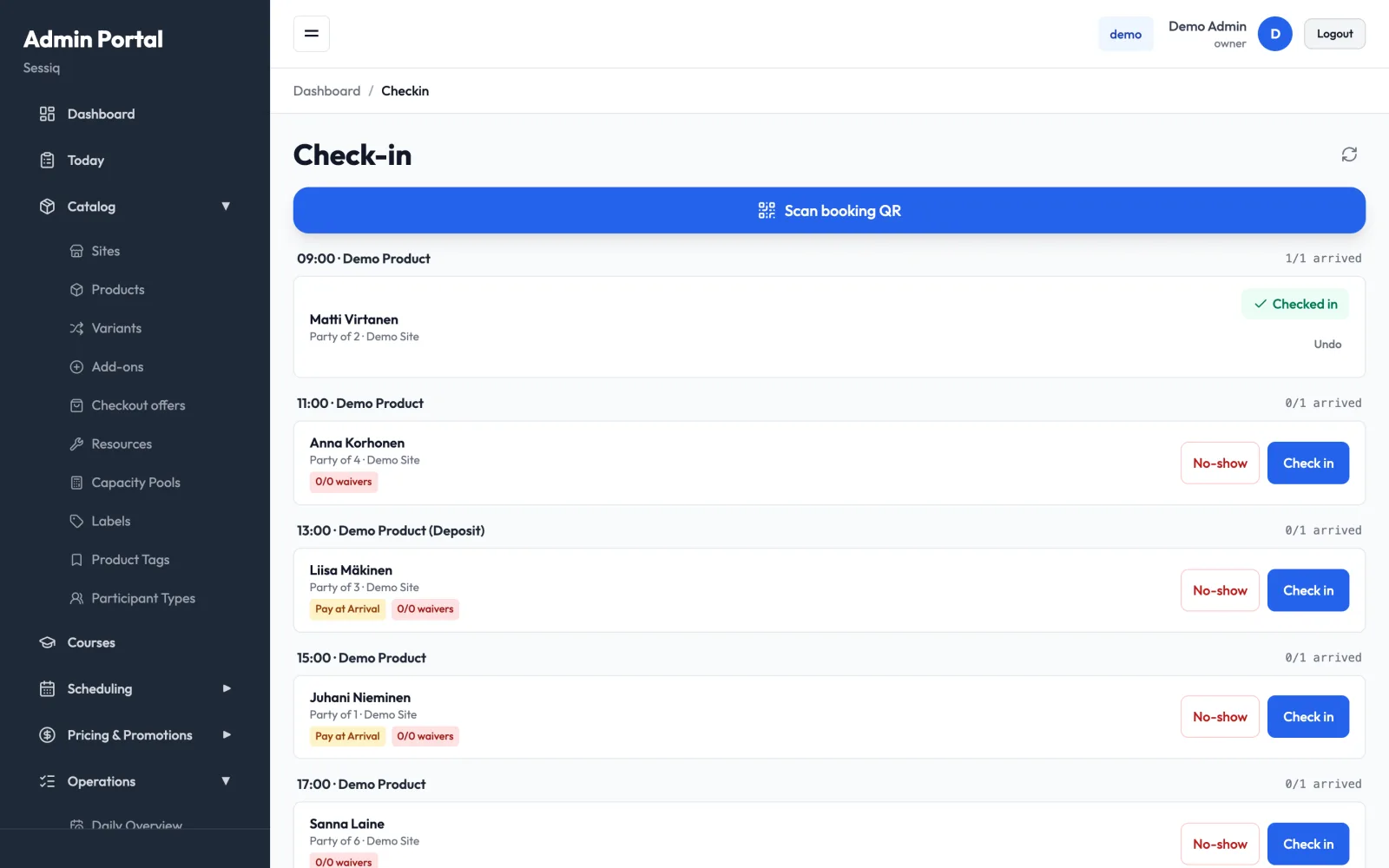
The page lists today's confirmed and already-arrived bookings, grouped by start time and product (for example 11:00 · Demo Product). Each group shows how many parties have arrived, such as 1/3 arrived. Each party shows the customer's name, party size and site.
Tap the refresh button next to the page title to reload the list.
Check in from the list
- Find the guest's group by start time.
- Tap Check in on their row.
- The row changes to Checked in, and a message confirms it at the bottom of the screen.
Checked someone in by mistake? Tap Undo on their row to put the booking back to confirmed.
Check in by scanning a QR code
Every booking confirmation email includes a QR code with the booking reference.
- Tap Scan booking QR.
- Allow the camera if your phone asks.
- Point the camera at the QR code on the guest's phone or printout.
- The booking opens in a panel with its status, party size and any badges. Tap Check in.
- Tap Scan another for the next guest, or close the panel.
If the scan doesn't find a booking:
- That code isn't a booking QR. The code isn't a Sessiq booking code. Tap Scan again.
- No booking found in this venue. The booking belongs to a different business, or the code is wrong. Tap Search manually to look the guest up in Bookings.
If the camera won't start, the panel says why, for example that camera permission was denied or that no camera was found. Allow camera access in your browser or phone settings, and make sure you're using the admin over a secure (HTTPS) address.
Mark a no-show
- Tap No-show on the party's row.
- Confirm with Mark no-show.
- For a few seconds, a message at the bottom of the screen offers Undo. Tap it if you pressed the wrong row. Nothing is saved until those seconds are up.
Once the undo time has passed, the no-show is final and the booking's places are released. Only mark a no-show when you're sure the guest isn't coming.
Badges on a party
- Pay at Arrival: the booking has an unpaid balance. Collect payment at the counter before letting the group in.
- Waivers, for example 2/4 waivers: the product requires a signed waiver, and this many participants have signed. Green means everyone has signed. Red means some signatures are missing. See Waivers.
Who can check guests in
Checking in and marking no-shows need the bookings:checkin or bookings:write permission. Owners and admins have both. The built-in member role (front desk) has check-in permission. The viewer role is read-only and can't check guests in. A user without either permission sees "You do not have permission to check guests in." on the Check-in page, and no Arrived or No-show buttons on Today.
See Team and roles to change permissions.
Tips
- Keep Check-in open on a phone at the door, and Today on the desk computer.
- The Check-in list shows only today's bookings. For another day, use Daily Overview.
- If a guest can't find their QR code, search their name or phone number under the Bookings tab.