Resources & rooms
Resources are the physical things a booking uses: rooms, lanes, equipment, vehicles or staff. A product's Resources tab lists the resources each booking needs (see Products). A resource's settings decide how many bookings can use it at the same time.
Open Catalog → Resources to manage resources and Catalog → Capacity Pools to manage shared limits.
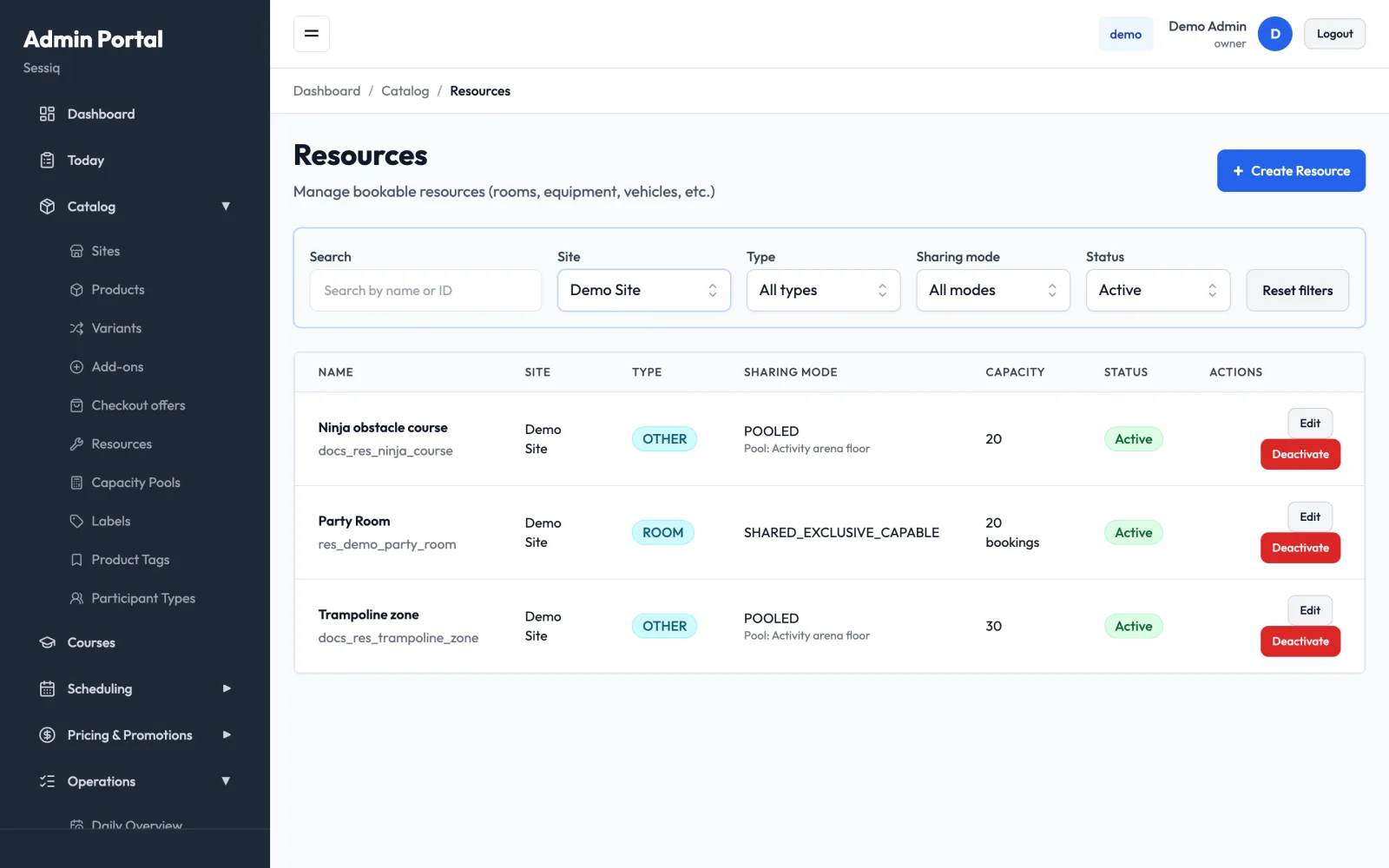
Find a resource
Filter the list by Search (name or ID), Site, Type, Sharing mode and Status. Reset filters clears them. The Capacity column shows the limit and, for shared resources, whether it counts people or bookings. A pooled resource shows the name of its pool.
Create a resource
- Click Create Resource.
- Fill in:
- Resource Name and Description. The description is shown in the room selector, so mention the theme or features.
- Site — can't be changed after creation.
- Resource Type — Room, Equipment, Vehicle, Staff or Other.
- Sharing Mode — see below.
- Base Capacity, plus Limit by for shared modes.
- Max Headcount (optional) — the largest single booking, in people, allowed to use this resource. This is a per-booking cap, not a total across bookings.
- Tick Shared across sites if products on your other sites may use this resource (see below).
- Click Create Resource. After saving, you can reopen it to add an image (square, at least 800×800 px, with alt text).
Sharing modes
| Sharing Mode | How it works | Typical use |
|---|---|---|
| Exclusive (one booking at a time) | Each booking takes the whole resource. | Escape room, private sauna |
| Shared (multiple bookings allowed) | Several bookings use the resource at once, up to Base Capacity. | Climbing hall, open play area |
| Shared, exclusive-capable (shared normally, buyable out) | Shared by default. A product can also buy it out for a private booking. | Party room or arena sold both as open sessions and as private hire |
| Pooled (capacity pool) | The resource draws from a capacity pool it shares with other resources. | Several zones on one floor with a combined limit |
Counting people or bookings
For the two shared modes, Limit by decides what Base Capacity counts:
- People (sum of party sizes) — the maximum number of people in the resource at once. Party sizes of overlapping bookings are added together.
- Bookings (count of bookings) — the maximum number of bookings at once, whatever their party size. Use this for a party room that fits a number of groups.
For Exclusive and Pooled resources, Base Capacity is the number of concurrent bookings the resource supports.
Buying out a shared room
To sell a private hire of a Shared, exclusive-capable resource, open the product's Resources tab. Click the resource's block and tick Exclusive — buy out this resource for the booking. That booking then blocks all other bookings on the resource for its time. Other products can keep selling the same resource as shared.
Shared across sites
Shared across sites lets products on your other sites use this resource in their booking sequence. Use it when two brands or sites sell the same physical room. Both then check one shared calendar, so the room can't be double-booked. In a product's resource palette and room-choice list, such a resource is marked Shared with its home site.
Deactivate a resource
Click Deactivate to take a resource out of use. It stays in the list marked Inactive and is hidden from new bookings. To bring it back, open it and tick Active.
Capacity pools
A capacity pool is a shared limit that several pooled resources draw from. For example, a trampoline zone and a ninja course on the same floor can each hold 20–30 people, but the floor as a whole allows 40.
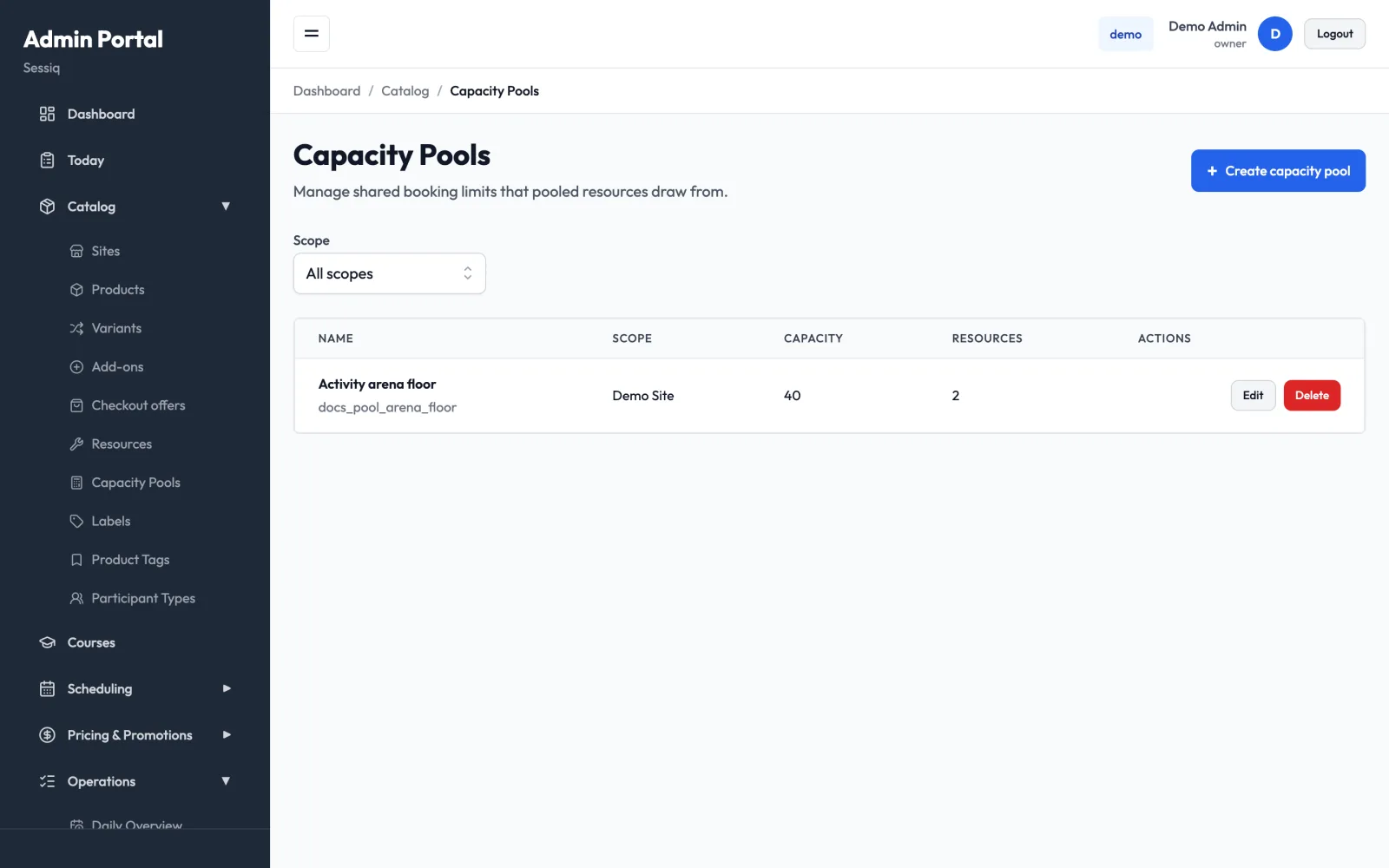
- Open Catalog → Capacity Pools and click Create capacity pool.
- Enter a Name and the Capacity. The capacity is the maximum number of people at once across all the pool's resources, with party sizes added together.
- Choose the Scope: one site, or All sites (shared) for a physical space that's bookable from several sites.
- Click Create pool.
- Open each resource that should use the pool. Set Sharing Mode to Pooled (capacity pool) and pick the pool under Capacity pool. Only pools for the resource's own site, or for all sites, are offered.
The Resources column on the pools list shows how many resources use each pool.
If the Capacity pool field says there are no pools for the site yet, create the pool first and then come back to the resource.