Waivers
Waivers are liability forms that customers read and sign before an activity, such as climbing or trampolining. You write each waiver once as a template. You then decide which products need it, and customers sign it as part of booking.
Open Compliance → Waivers in the admin navigation to manage your templates.
The waiver template list
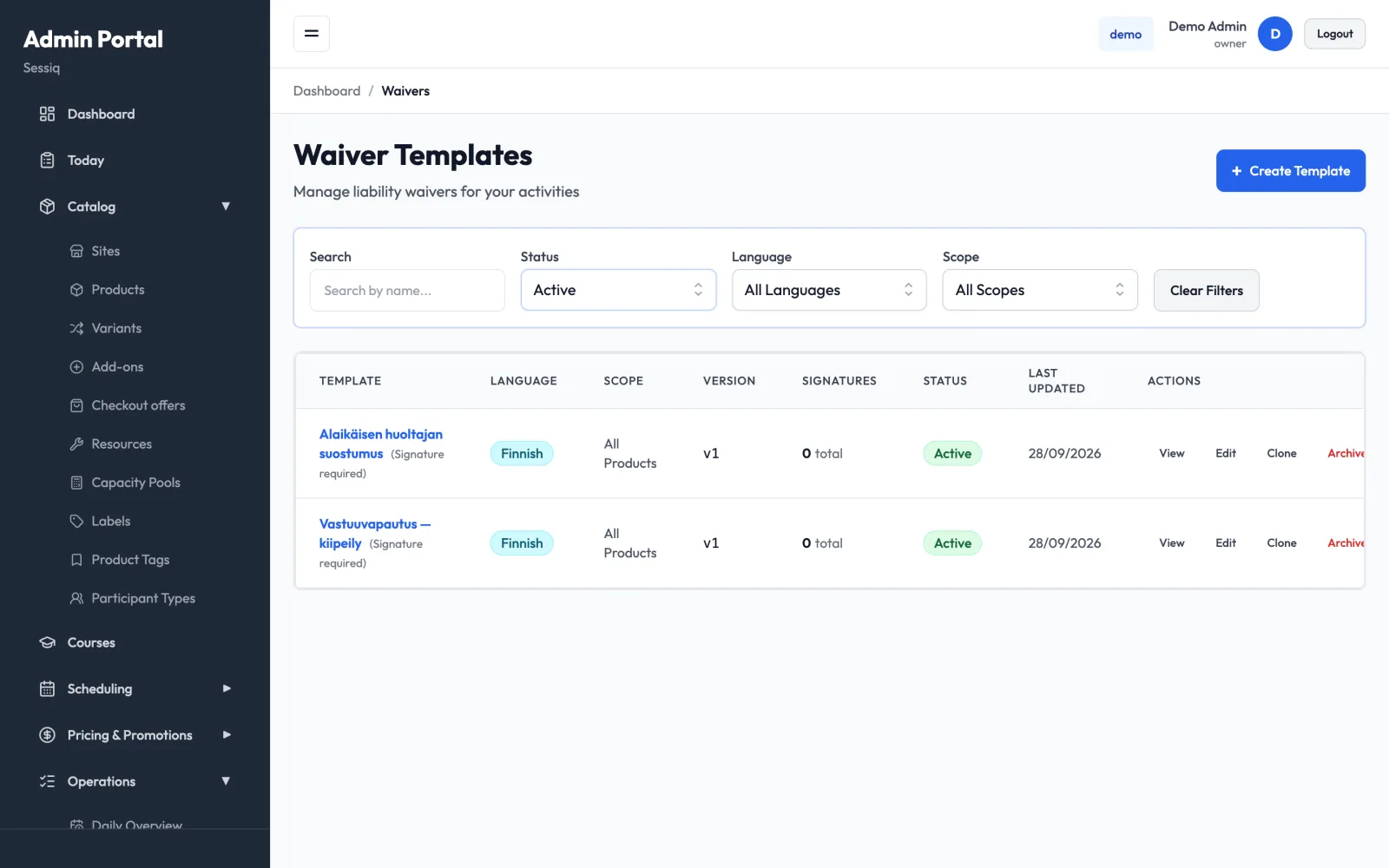
Each row shows:
- Template: the name, with "(Signature required)" if customers must sign it
- Language: English, Finnish or Swedish
- Scope: which products the waiver applies to
- Version: goes up each time you change the waiver text (v1, v2, …)
- Signatures: the total signature count, plus how many were signed in the last 7 days
- Status: Active or Archived
- Last Updated
- Actions: View, Edit, Clone, and Archive or Activate
Filter the list by Search (name), Status, Language and Scope. Clear Filters resets them. The list shows active templates by default. To find retired templates, set Status to Archived or All Status.
Create a waiver template
- Click Create Template.
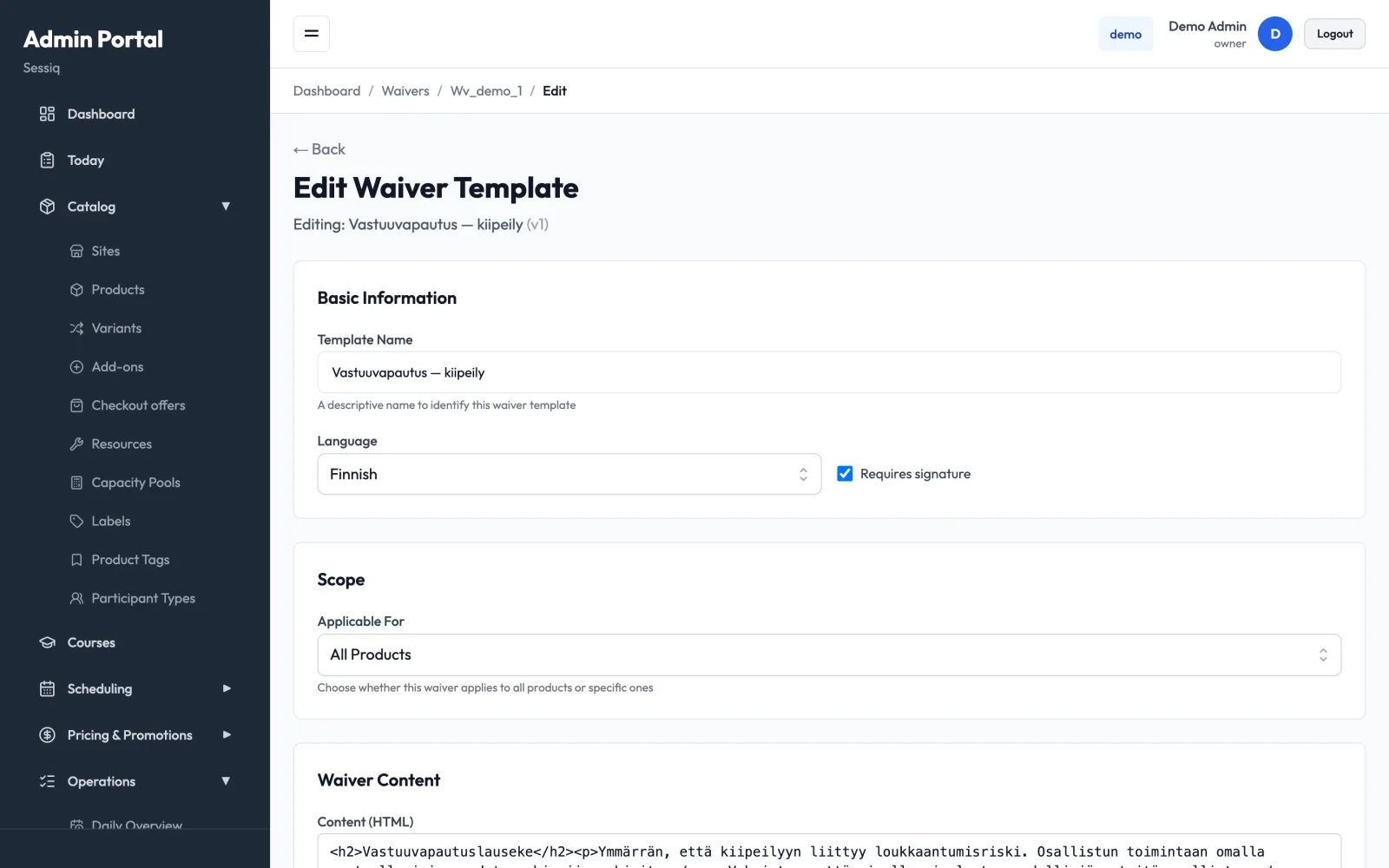
- Under Basic Information, enter:
- Template Name: a descriptive name, for example "Standard Liability Waiver 2026"
- Language: English, Finnish or Swedish
- Requires signature: tick this if customers must sign, not just read
- Activate immediately: tick this to make the template live straight away
- Under Scope, choose Applicable For:
- All Products: the waiver applies to every product
- Specific Products: tick the products it applies to (Select all and Clear help with long lists)
- Specific Sites: tick the sites it applies to
- Under Waiver Content, write the text in Content (HTML). Standard formatting tags such as headings, paragraphs and lists work. Check the Preview below the editor to see how customers will see it.
- Click Create Template.
You can have only one active All Products waiver per language. To replace it, archive the old one first, or give the new waiver a narrower scope.
Edit a template and versions
Click Edit to change a template. The page title shows the current version, for example "Editing: Standard waiver (v1)".
- If you change the waiver content, the version goes up by one when you save. Signatures already collected stay linked to the version the customer actually signed.
- Changes to the name, language, signature requirement or scope don't change the version.
- Use Notes (optional) under Update Notes to record why you made the change. The note is saved in the audit history.
If you edit an archived template, your changes are saved, but customers won't see them until you activate the template again.
View signatures and history
Click View (or the template name) to open the template's detail page. It shows:
- Total Signatures, Past 7 Days, Past 30 Days and Last Signed
- The template's Scope
- Content: the waiver as customers see it
- Recent Signatures: who signed (Signed By, Email), for which Booking, and when (Signed At)
- Audit History: every create, update, archive and activate, who did it, and when
Translate a waiver with Clone
Clone copies a template, which makes translations easy.
- Click Clone on the template.
- Enter a New Template Name. It defaults to "(Copy)" after the original name.
- Choose a Language. Pick a different language to make a translation.
- Click Clone Template, then Edit the copy to translate the content.
Archive and reactivate
- Click Archive on the template.
- Optionally enter a Reason for archiving, for example "Replaced by updated version". If the template was signed in the last 7 days, the dialog warns you.
- Click Archive Template.
Customers no longer see an archived template, but its signatures and history are kept. Click Activate on an archived template to bring it back.
Require a waiver on a product
To make sure a product always asks for the right waiver:
- Open the product in Products and go to the Capacity tab.
- Under Required Waiver, pick the waiver template. Choose No waiver required to turn it off.
- Save the product.
A waiver chosen on the product always takes priority. If a product has no waiver selected, an active template whose scope matches the product (all products, that product, or its site) is used instead.
Where customers sign
- During checkout: when a booking needs a waiver, the booking flow shows a Waivers step. Customers must scroll through the whole waiver before they can click Sign Waiver. Each participant signs, and a parent or guardian signs on behalf of a minor.
- In My Bookings: customers who haven't signed yet can open their booking later and sign from its Waivers section.
- At the desk: when you sell a walk-in for a product that needs a waiver, staff confirm the waiver as part of the sale. See Walk-in sales.
When staff create a booking in the admin booking wizard, it also includes a waivers step for products that need one. See Bookings.