Waitlist
When a time slot or a course is full, customers can join a waitlist instead of going away empty-handed. If a place opens up, Sessiq emails the people at the top of the queue so they can claim it. The Waitlist Management page shows everyone who is waiting and lets you step in by hand.
Open it from Operations → Waitlist. The Needs attention panel on the Today page also links here when customers are waiting.
Turn the waitlist on
The waitlist is set per product. In the product's settings, tick Enable waitlist. See Products.
With the waitlist enabled, customers who find a course full see a message saying This course is full, with a Join waitlist button. It appears on the course's booking page and in the booking widget on your website. A course waitlist place is for the whole course, not one session. See Courses.
Customers leave their name and email, and get the next place in the queue. Signed-in customers can see their places, and leave a waitlist, from their account.
How places are offered
When a booking is cancelled or marked as a no-show, the freed places are offered automatically:
- Sessiq looks at the queue in order and picks the customers whose party fits in the space that opened up. A party that's too big stays in the queue and keeps its place.
- Those customers are emailed an offer, and their entry changes to Notified.
- They have one hour to accept. A reminder is sent shortly before the offer runs out.
- If they don't accept in time, the entry becomes Expired.
For a course, a cancelled enrolment frees a seat on every session at once, so the offer is for the whole course. Waitlist entries for a single time slot are offered the same way when a booking in that slot is cancelled.
The Waitlist Management page
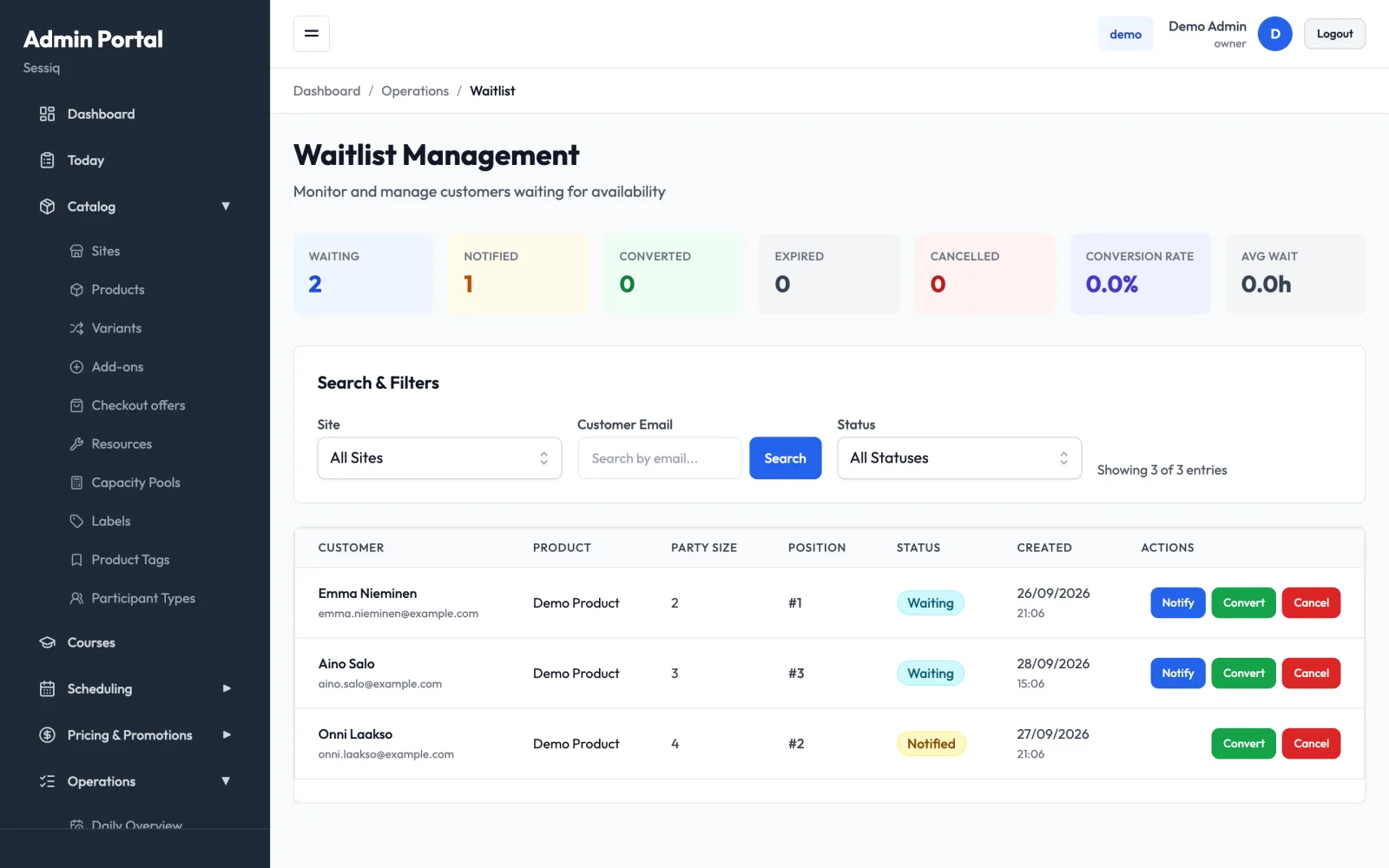
Summary
The tiles at the top count entries in each status, plus:
- Conversion Rate: the share of entries that turned into bookings.
- Avg Wait: how long customers typically wait.
Filters
- Site: show one site only.
- Customer Email: type an email and press Search.
- Status: show one status only.
The table
Each row shows the Customer (name and email), the Product with the time slot, or for a course its schedule (for example "Mondays at 17:00 · 8 sessions"), the Party Size, the Position in the queue, the Status, and when the entry was Created. For notified entries, the time the offer Expires is shown under the status.
Statuses
| Status | Meaning |
|---|---|
| Waiting | In the queue. No offer sent yet. |
| Notified | An offer has been emailed. Waiting for the customer to accept. |
| Converted | The customer got a booking from the waitlist. |
| Expired | The offer ran out before the customer accepted. |
| Cancelled | The entry was cancelled by staff or the customer. |
Act on an entry
The buttons in the Actions column depend on the status:
- Notify (waiting entries): emails the customer an offer now, without waiting for a cancellation. The offer is open for one hour.
- Convert (waiting and notified entries): turns the entry into a booking on hold for the customer. For a course entry, it enrols the customer in the whole course. Then find the booking on the Bookings page to confirm it and arrange payment. If the slot or course has filled up again, the conversion fails.
- Cancel (waiting and notified entries): takes the customer off the waitlist.
- Delete (expired and cancelled entries): removes the entry for good.
Each action asks you to confirm first.
Before you press Notify, check that there really is room. An offer for a slot that's still full will only disappoint the customer.
Notes
- Staff using the phone app can get a push notification when waitlist seats open up. See Mobile admin app.
- Cancelled and expired entries are cleared out automatically after 90 days.