Getting around the admin
The Sessiq admin is where you and your team run the venue: taking bookings, checking guests in, setting up products and prices, and following the numbers. This page explains how the admin is organised, where you land when you sign in, and what the Dashboard shows.
Where you land when you sign in
Where you land depends on your role:
- Owners and admins land on the Dashboard, which shows sales and booking figures for the last 30 days.
- Front-desk staff (members) and read-only users (viewers) land on Daily Overview, the day's booking list and timeline. The Dashboard includes revenue figures, so it's reserved for admin-level roles. If a staff user opens the Dashboard address directly, they are sent to Daily Overview instead.
On a phone, everyone can use the Today tab as their home screen for the shift. See Today and check-in.
The admin menu
On a computer, the menu runs down the left side of the screen. Groups with a small arrow open to show the pages inside them. The menu button at the top left collapses the sidebar when you need more room.
| Group | What's in it |
|---|---|
| Dashboard | Headline figures and charts for the last 30 days. |
| Today | The day console: today's counts, what needs attention, and shortcuts for walk-ins and search. |
| Catalog | Sites, Products, Variants, Add-ons, Checkout offers, Resources, Capacity Pools, Labels, Product Tags and Participant Types. |
| Courses | Multi-session courses, their participants and attendance. |
| Scheduling | Schedules (when products can be booked) and Capacity Overrides. |
| Pricing & Promotions | Pricing Rules, Promotions, Promotion Analytics, Campaigns, Vouchers, Voucher Analytics, Gift Cards and Event Packages. |
| Operations | Daily Overview, Bookings, Waitlist, Cancellations, Refunds, No-Shows and Booking Groups. |
| Customers | Your customer list and each customer's booking history. |
| Communications | Email Templates, Automation Rules and Reviews. A number next to Reviews shows how many reviews are waiting for moderation. |
| Compliance | Waivers. |
| Reports | Analytics, Revenue, Capacity, Reconciliation and Scheduled Reports. |
| System | Resource Maintenance (planned closures of rooms and equipment) and technical message logs. |
| Settings | Integrations, Team, API Keys and Branding. |
A breadcrumb trail under the top bar shows where you are, for example Dashboard / Operations / Daily Overview. Click any part of it to go back up a level.
What your role can see
The menu only shows pages your role is allowed to use, so nobody is offered a link that would end in an error.
- Owners and admins see every group.
- Members and viewers see a shorter, operational menu: Today, Courses, Operations (Daily Overview, Bookings and Cancellations) and Customers.
- Custom roles see whatever their permissions allow. For example, a role that can manage schedules sees Scheduling, and a role that can view refunds sees Refunds. A group with no pages left for that role is hidden entirely.
To change what a role can see and do, see Team and roles.
The Dashboard
The Dashboard gives owners and admins a quick read on how the business is doing over the last 30 days.
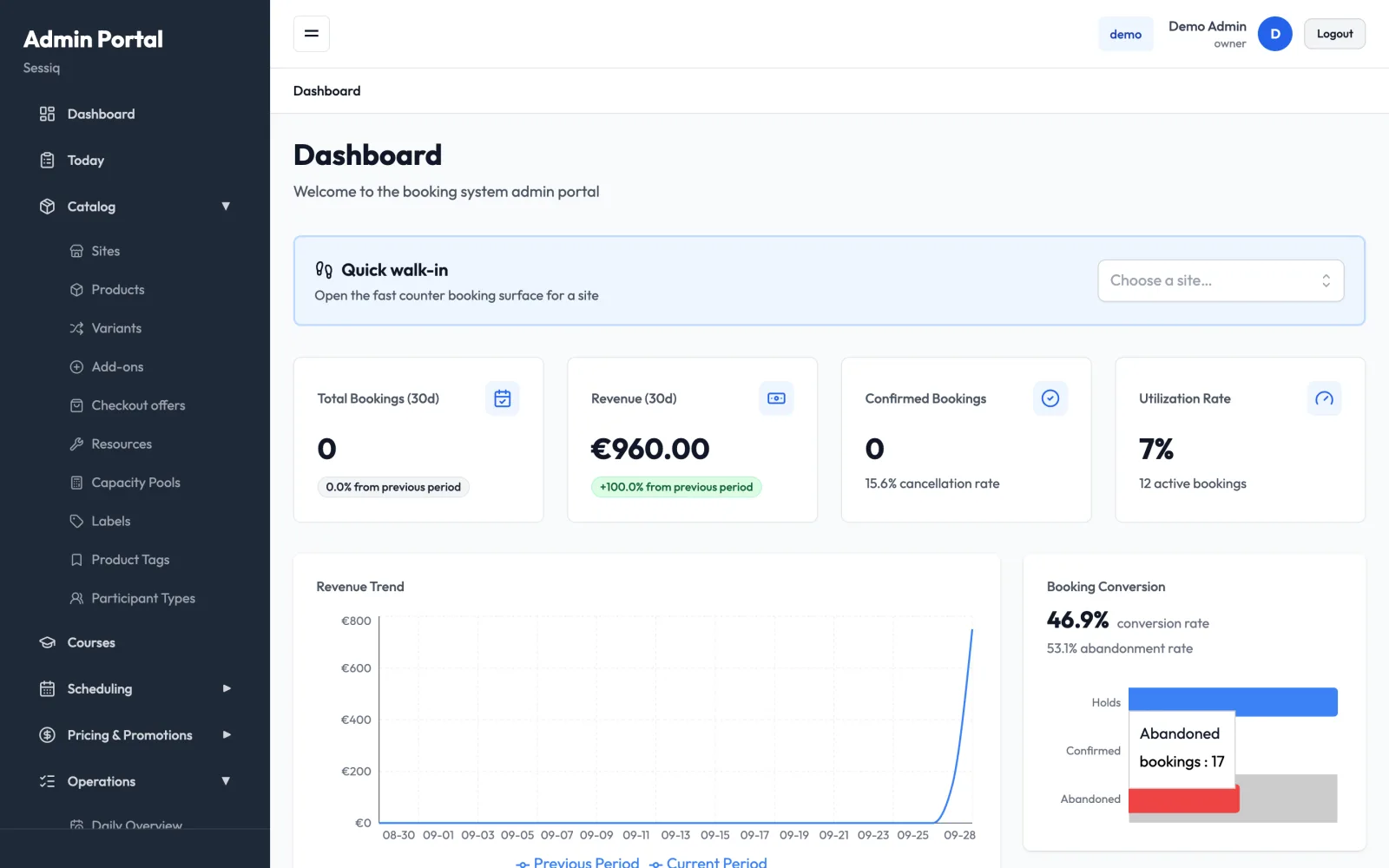
From top to bottom it shows:
- Quick walk-in: a shortcut into the counter sales screen (see below).
- Figure cards:
- Total Bookings (30d) and Revenue (30d), each with a badge comparing them to the previous 30 days.
- Confirmed Bookings, with the cancellation rate underneath.
- Utilization Rate: how much of your current capacity is booked, with the number of active bookings underneath.
- Revenue Trend: a line chart of daily revenue for the current period, drawn against the previous period so you can compare.
- Booking Conversion: how many started bookings (holds) went on to be confirmed and how many were abandoned, as a conversion rate and an abandonment rate.
- Attendance: for completed bookings, how many guests attended and how many were no-shows.
- Top Products by Revenue: your best-selling products and their booking counts.
- Capacity Utilization: how full you are Today and This Week.
- Needs Attention: items to act on, such as upcoming bookings today or pending refunds. Each item links to the page where you can deal with it. If nothing needs attention, it says so.
- Quick Actions: buttons for Manage Sites, Manage Products, Manage Schedules, Manage Bookings and Manage Resources.
Hover over a chart to see the exact figure for a day or a bar.
Quick walk-in
The Quick walk-in panel appears on the Dashboard and on the Today page. Use it when someone walks up to the counter and wants to book on the spot.
- In the Choose a site... list, pick the site the guest is at.
- The fast counter booking screen opens for that site, showing the products you can sell there today.
On the Today page, the panel only appears for users whose role can create walk-in bookings. See Walk-in sales for the full counter flow.
The admin on a phone
On a phone, the side menu is replaced by a bar along the bottom of the screen with four tabs. They are the same for every role:
- Today: the day console for your shift.
- Check-in: the raised centre button. Opens the check-in screen, where you can scan a booking QR code or check guests in from the list.
- Bookings: search bookings and customers by name, phone or booking reference.
- More: everything else.
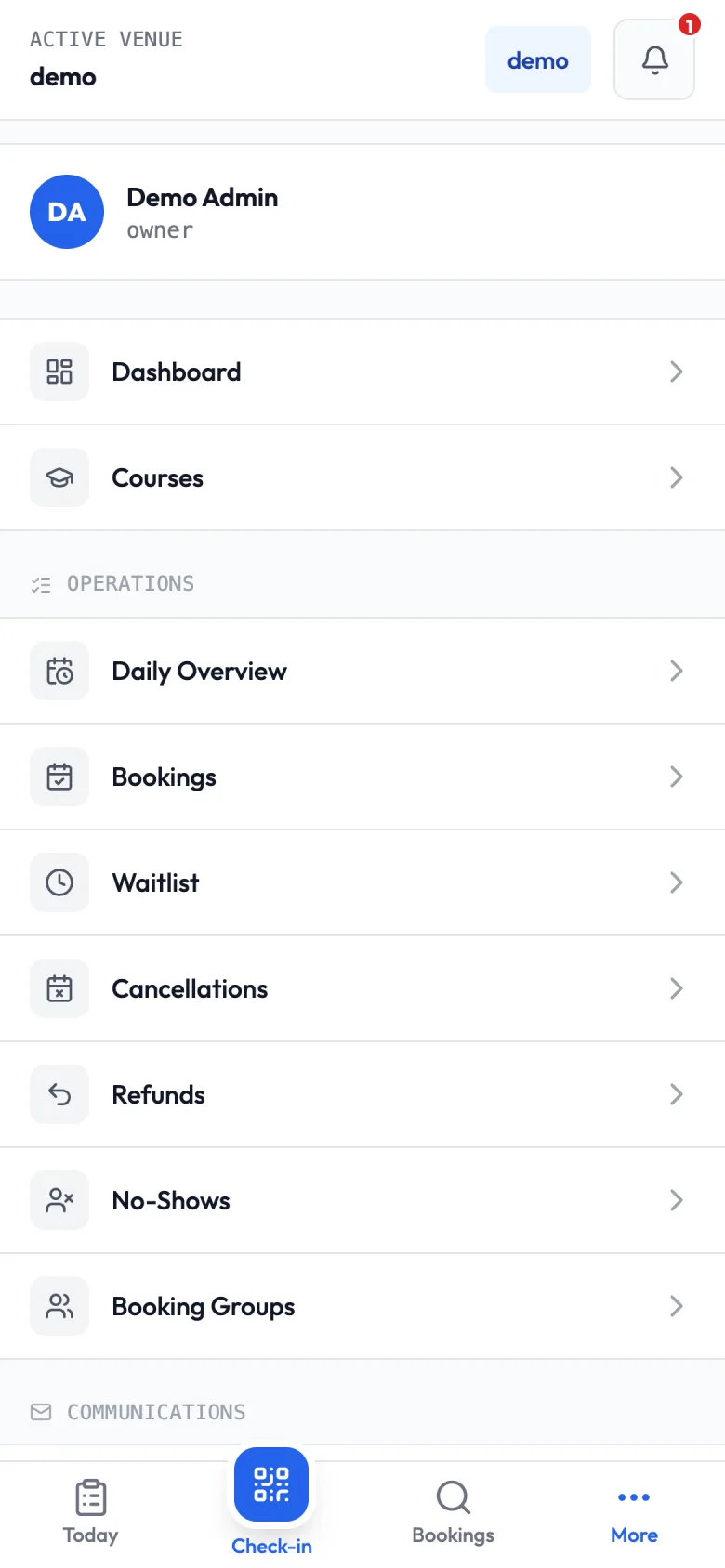
The bar at the top of the screen shows the Active venue. The bell button opens More. A red number on the bell shows how many reviews are waiting for moderation.
The More hub
More lists every other page your role can use, built from the same menu as the computer sidebar:
- At the top: your name and role.
- Everyday pages you can use on the phone, such as Dashboard, Courses, the Operations pages, Communications and Reports.
- A Configure on desktop section for setup-heavy pages such as Catalog, Scheduling, Pricing & Promotions, System and Settings. You can open them on a phone, but they are easier to use on a computer.
- Account: Notifications (push alerts for this device) and Sign out.
For installing the admin on your home screen and turning on push notifications, see Mobile app.