Walk-in sales
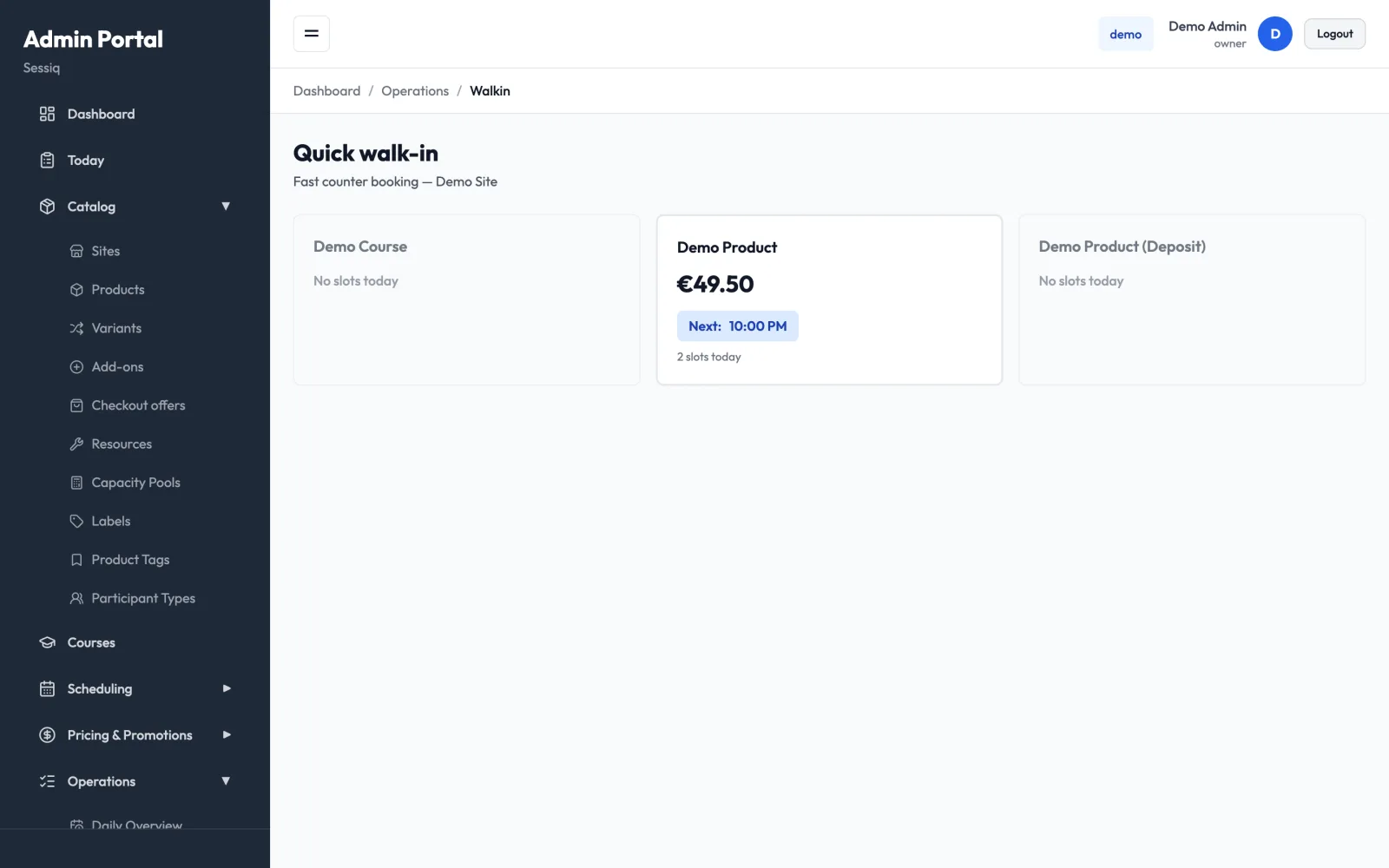
Quick walk-in is a fast counter screen for guests who turn up without a booking. Choose the activity, set the party size, take the payment, and you're done. There are no customer details to fill in and no online checkout.
It works on one site at a time and only shows today's slots.
Open Quick walk-in
There is no menu item for Quick walk-in. Open it from the Quick walk-in panel on the Dashboard or the Today page: choose a site in Choose a site…, and the walk-in screen opens for that site.
The panel only lists the sites you have access to. On Today, it only appears for staff who are allowed to create bookings.
Keep the walk-in screen open on the counter computer or tablet during opening hours. After each sale it goes back to the product grid on its own.
Choose which products appear
A product appears in the grid when Walk-in enabled is ticked in its settings, next to Active. See Products. Products without this tick can still be booked for walk-in customers through the booking wizard on the Bookings page.
If no product at the site is walk-in enabled, the screen says No walk-in-enabled products at this site.
The product grid
Each card shows one product (or one product variant) with:
- the price
- Next: the next slot today that still has room
- how many slots are left today
- a Waiver badge if the product needs a signed waiver
Products with No slots today are greyed out and can't be selected.
Make a sale
- Tap the product card.
- Set the Party size with − and +. It starts at 1, or at the product's minimum party size, and stays within the product's limits.
- For a product with participant types (for example adults and children), there is one − / + per type instead, and the party size is their sum. Types marked required need at least one person; until then you see Add at least one: and the type's name. The confirmation lists the mix, for example "2 × Aikuinen, 1 × Lapsi".
- Check the Slot. The next slot with enough room for the party is selected for you. Tap another time to change it. Slots without enough room are greyed out, and each slot shows how many places are left.
- Check the Total above the payment buttons. It updates as you change the party, the mix of participant types, the slot or the duration.
- Under Payment, tap how the guest paid:
- Cash
- Card terminal: paid on your own card terminal.
- Comp: free of charge.
- The booking is created straight away. Booking confirmed shows the reference, product, slot, party size and total for a few seconds, then the screen returns to the grid. Tap Done now to go back sooner.
Cash and Card terminal sales are recorded as paid. Comp sales are recorded with nothing owed. The booking is marked as a walk-in and appears on the Bookings page like any other booking.
Discount codes and gift cards
Before you tap a payment method, you can add codes the guest brings:
- + Discount code: type the code, for example a code claimed from a campaign calendar, and tap Apply. If the code is valid, you see the discount and the Total after discount, and the payment buttons show the amount to collect. If it isn't, you see why, for example "This code is valid only on Thu, Fri.", and the sale goes ahead at the full price without the code. If the product already has an automatic promotion that gives a bigger discount, the till says so and the sale uses the automatic promotion instead of the code.
- + Pay with a gift card: type the gift card code and tap Apply. You see how much the card covers and what is left to pay. If the card covers everything, tap Pay with gift card.
You can use both: the gift card then pays what is left after the discount. Comp never uses a code.
If the party is bigger than any slot today can take, you'll see No slot today has capacity for this party size. Use Back to grid to choose something else.
Waivers
If the product needs a waiver, a Waiver required box appears after you choose the payment method. It asks you to confirm that the guest has signed a waiver at the counter.
- Confirm & book records that the waiver was handled at the counter and creates the booking.
- Cancel goes back without booking.
This is a confirmation that you've collected the waiver, not the waiver itself. Make sure the guest has actually signed before you confirm. See Waivers.
Notes
- Walk-in bookings can't be marked as no-shows.
- If a guest needs a refund, see Payments and refunds.
- For a walk-in that needs extras or a custom price, use the + New Booking Wizard on the Bookings page and set Booking Source to Walk-in.