Add-ons
Add-ons are extras customers can add to a booking: food, merchandise, equipment rental, services or upgrades. You create an add-on once and then turn it on for the products it belongs to. Add-ons can be grouped into ordered steps in the booking flow and can appear only when other add-ons are chosen.
Open Catalog → Add-ons.
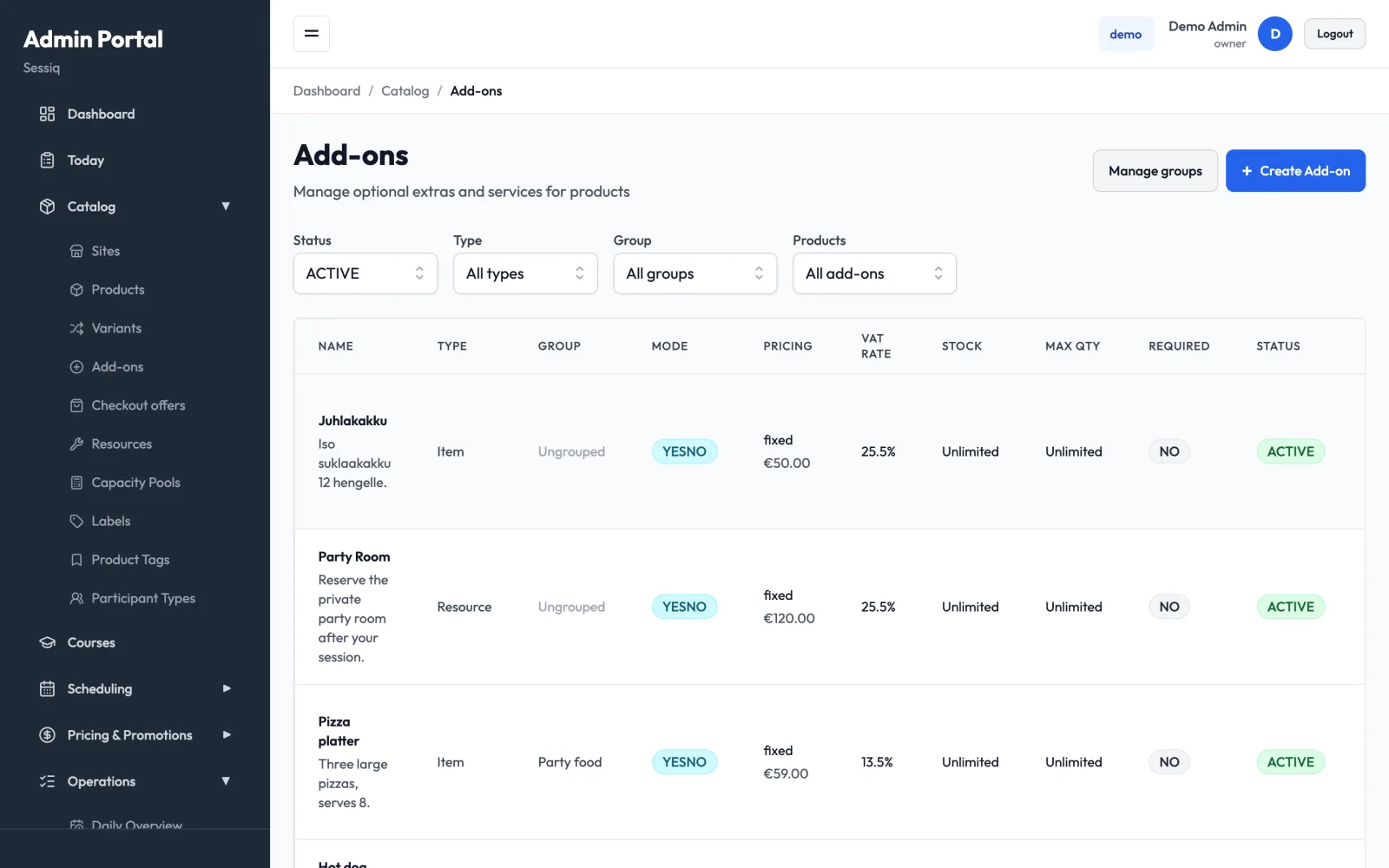
Find an add-on
Filter the list by:
- Status — ACTIVE or INACTIVE.
- Type — Item, Service, Upgrade or Resource.
- Group — one add-on group, or Ungrouped.
- Products — In use (enabled on at least one product) or Not connected. Add-ons that aren't on any product also show an Unused badge.
Row actions are Edit, Audit Log, Deactivate / Activate and Delete. An add-on that appears in existing bookings can't be deleted. You'll be offered Deactivate instead, which stops it being offered on new bookings while existing bookings keep it.
Create an add-on
- Click Create Add-on.
- Fill in the basics:
- Add-on Name and Description.
- Type — Item, Service or Resource.
- Add-on group — optional. See Add-on groups.
- Promo badge — an optional call-out: Most popular, Children's favourite, New, Best value, or Custom… with your own English and Finnish label.
- Set how it's chosen and charged:
- Mode — Yes/No (Simple checkbox), Free Quantity (User enters amount), or Per Participant (Auto-multiply by party size).
- Price Type — Fixed, Per Person or Percentage (of the base price). A per-participant add-on is already multiplied by party size, so give it a Fixed price per participant. Per Person isn't available for that mode.
- Price Amount (EUR).
- VAT Rate (%) — leave on Use default to use your default rate.
- Max Quantity — leave blank for unlimited.
- Stock / Inventory — available stock. It goes down when a booking is confirmed. Leave blank for unlimited.
- Max per time slot — the most that can be booked in one time slot, counted across all bookings in it (for example 2 cakes per 14:00 slot). Held, confirmed and arrived bookings count. When the slot is full for this add-on, customers can't add more there. If you lower the limit and some upcoming slots already have more, you're told how many. Those bookings are kept; new ones just can't add more. Leave blank for no limit. The daily prep sheet shows these add-ons under Limited add-ons per time.
- Sort Order — lower numbers appear first.
- Choose the Visibility (see Conditional add-ons), and tick Required or Active as needed.
- Click Create Add-on.
After saving, reopen the add-on to upload an image (square, at least 400×400 px, with alt text). Use Enabled products to choose which products offer it.
Turn an add-on on for products
You can connect add-ons and products from either side:
- From the add-on — in Enabled products, click Add product. Pick the product and set Required, Max quantity override and Sort order.
- From the product — on the product's Add-ons tab, click Add Add-on. You can select several add-ons at once, filtered by group or name. See Products.
Remove only disconnects the add-on from that product. The add-on itself is kept.
Required add-ons
Required on the connection between an add-on and a product is what the booking flow uses. The customer sees a required add-on ticked and locked, and can't remove it. The calendar and the times still show the product's own price, and a note under the times and the group size says what is added, for example "Hintaan lisätään Juhlatila 49,00 €." The estimated and final totals include it. Use it for something every booking of that product pays for, such as a party room priced per party on top of a per-child price. Name the add-on plainly (e.g. "Juhlatila"), since the note reads "Hintaan lisätään" followed by the add-on's name and price. If the price depends on which room is booked, or the customer chooses the room, use a room fee on the product's room block instead.
Add-on groups
Groups split a product's add-ons into ordered steps in the booking widget, for example "Party food", then "Drinks", then "Extras". Ungrouped add-ons stay in one flat list.
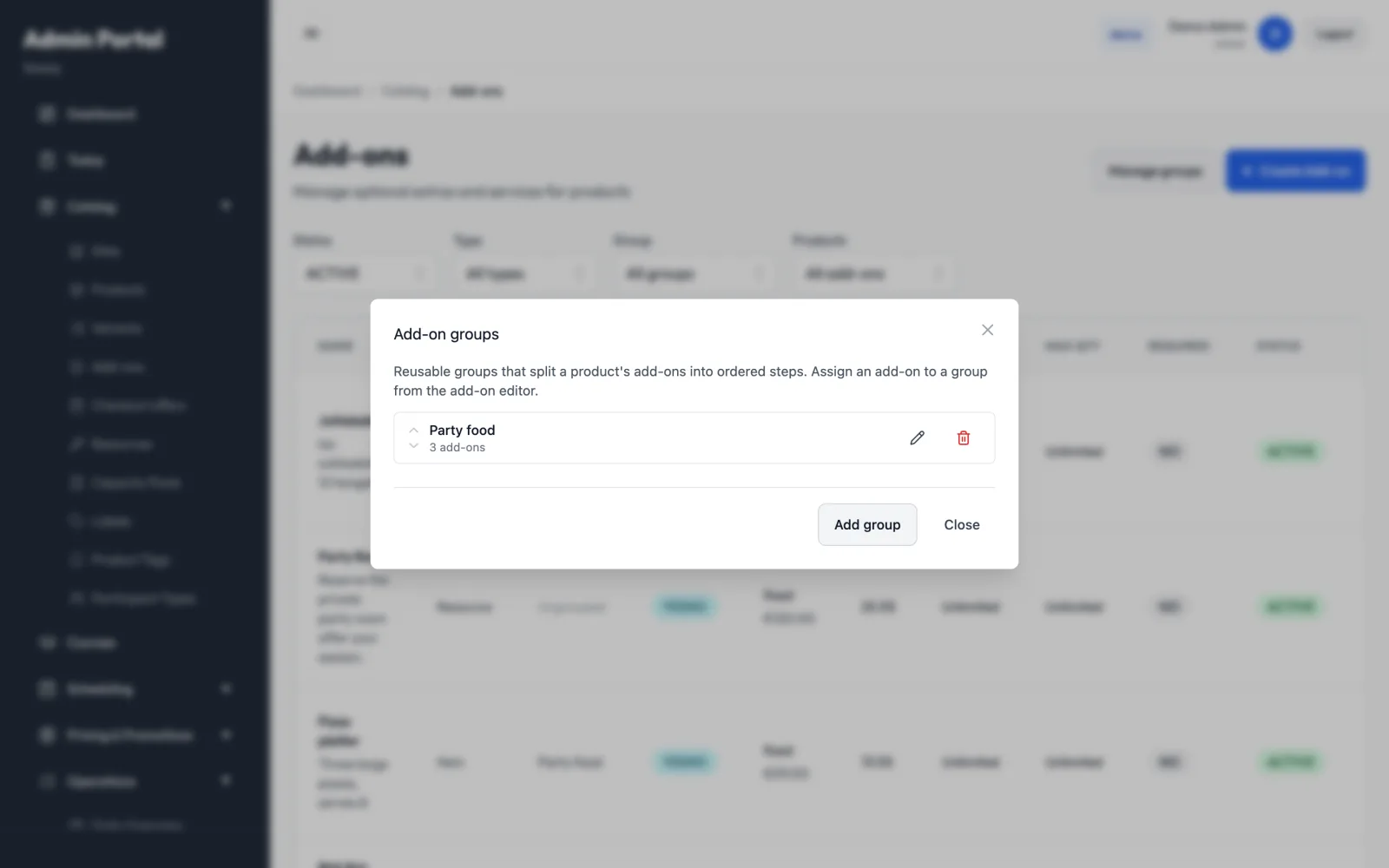
- Click Manage groups on the Add-ons page.
- Click Add group and enter a Name, Label (English), Label (Finnish) and an optional Icon.
- Under How many options can the customer choose? set a minimum and a maximum:
- Leave both blank for no limit.
- Max 1 makes it a single choice (radio buttons).
- Min 1 makes a choice required.
- Click Save. Use the up and down arrows to set the order of the steps.
- Assign add-ons to the group from each add-on's editor (Add-on group).
When a group has a selection limit, the group's limit decides whether a choice is required. The per-add-on Required box is then turned off. Deleting a group moves its add-ons back to ungrouped.
Conditional add-ons
An add-on can appear only when the customer's other choices match a rule.
- In the add-on editor, under Visibility, set When to show this add-on to Conditional (depends on other add-ons).
- Under Show this add-on when, choose one of these rules:
- Any of the selected add-ons below is chosen
- All of the selected add-ons below are chosen
- None of the selected add-ons below are chosen
- Tick the Trigger add-ons. Only add-ons set to Always shown can be triggers.
A conditional add-on can't be Required, because it may be hidden.
Resource add-ons
A Resource add-on links to a physical resource, such as a party room booked for a time window after the activity. After saving, add Resource Configurations with these settings:
- Resource and Duration (minutes).
- Pricing Mode — Flat Rate or Per Hour — and Price (EUR).
- Timing (relative to activity) — Before, During or After.
- Buffer Before (min) and Buffer After (min).
- Capacity Override.
Resource add-ons are not currently offered to customers in the online booking flow. To sell a room with a booking today, add it to the product's resource sequence instead (see Resources & rooms).
Related
- Checkout offers — sell an add-on at a special price in a separate "Offers" step.