Reviews
Sessiq asks customers for a review after their visit. Nothing is published straight away: every review waits in a moderation queue until someone on your team approves it. Approved reviews appear on the product's public page and count towards its star rating.
You'll find the queue under Communications → Reviews in the admin menu. It is available to owners and admins.
How review requests are sent
You don't need to set anything up. Review requests are sent automatically:
- Regular bookings: when a booking is confirmed, Sessiq schedules a review request email for 24 hours after the booking ends.
- Courses: an enrolment gets one review request 24 hours after the last session ends, not after the first session.
- Cancelled bookings: if the booking is cancelled before the email goes out, the review request is cancelled too.
- One per booking: each booking gets at most one review request.
The email contains a personal link. The customer opens it, picks a rating from one to five stars, and can add an optional title and an optional written review. Each link can be used only once. After submitting, the customer is told that the review will be published after moderation.
The request uses the Review Request email template (and Course Review Request for courses). You can edit the text, and add translations, under Email Templates. See Emails and automations.
Moderate reviews
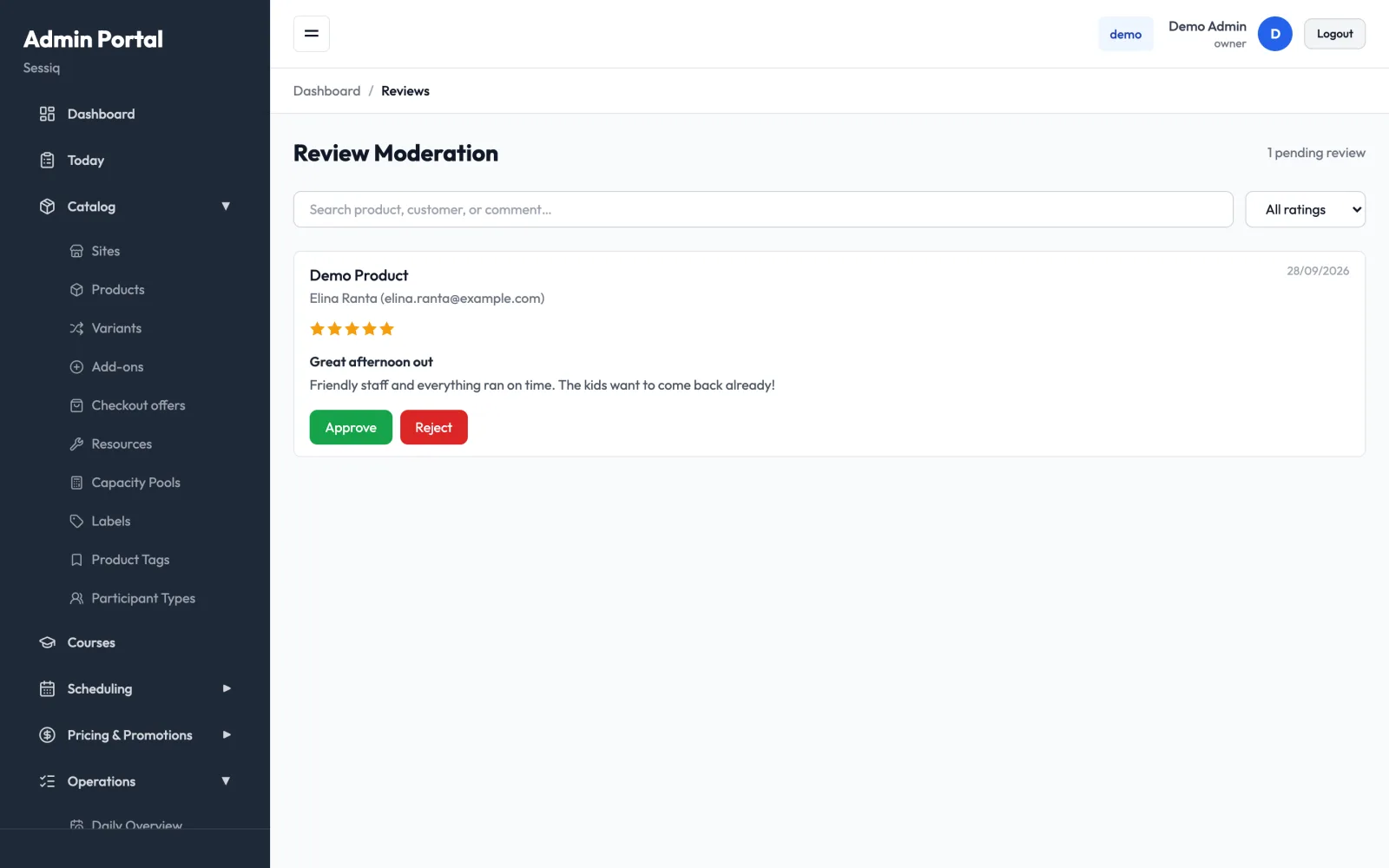
The Review Moderation page lists every review that a customer has submitted and nobody has handled yet. The number of waiting reviews is shown at the top right, for example "1 pending review".
Each review card shows:
- the product name
- the customer's name and email address
- the date the review was submitted
- the star rating
- the title and written review, if the customer added them
To handle a review:
- Read the review.
- Click Approve to publish it, or Reject to keep it off your public pages.
- The review disappears from the queue straight away.
A decision is final. Once a review has been approved or rejected, it can't be moved back to the queue or changed from the admin.
Customers who received a review request but haven't written anything yet don't appear in the queue. Only submitted reviews are listed.
Find a specific review
When the queue has reviews in it, two filters appear above the list:
- Search product, customer, or comment… matches the product name, the customer's name or email, and the review title or text.
- All ratings narrows the list to one star rating, from five stars down to one. Use it, for example, to deal with low ratings first.
If nothing matches, the page shows "No reviews match your filters." Clear the search box or choose All ratings again to see everything.
When the queue is empty, the page shows "No pending reviews to moderate."
Where approved reviews appear
Approved reviews are shown on your public booking site:
- Product page: the product's detail page has a Reviews section with the average rating, the number of reviews, and the most recent approved reviews.
- Product cards and lists: the star rating and review count appear next to the product wherever products are listed, for example on the experiences list and your home page.
The rating is recalculated each time you approve or reject a review. Rejected reviews never appear publicly and don't affect the rating.
Keep on top of new reviews
You don't have to keep checking the page. Sessiq shows the number of waiting reviews in several places:
- Admin menu: a count badge next to Reviews.
- Today: a "Reviews to moderate" item in the Needs attention panel, linking to the queue. It appears only when at least one review is waiting. See Today and check-in.
- Phone: on the mobile admin, the bell icon at the top of the screen shows a red badge with the same count. See Mobile app.
The count refreshes about once a minute, so a review you've just handled may still be counted briefly.
Tips
- Moderate regularly. Customers are told their review will be published after moderation, so a quick turnaround shows that you read them.
- Reject only what shouldn't be public. For example, reject spam, personal information, or abusive language. Honest criticism builds trust with new customers.
- Follow up in person. For a low rating, the card shows the customer's email address, so you can contact them directly. You can find the booking under Bookings.