Mobile app
You don't need a separate app to run your venue from a phone. The Sessiq admin works in the phone's web browser. You can also add it to your home screen, where it opens full screen like an app, and get push notifications for new bookings and cancellations.
The admin on a phone
Open the admin in your phone's browser and sign in as usual. On a phone-sized screen the layout changes:
- The top bar shows the Active venue and a bell button. The bell opens More. A red number on it shows how many reviews are waiting for moderation.
- The bottom tab bar has four tabs: Today, Check-in (the raised centre button), Bookings and More. They are the same for every role.
- Pages fill the whole width of the screen. Lists become full-width rows you can tap, and filters fold away behind a Filters button, so the bookings come first.
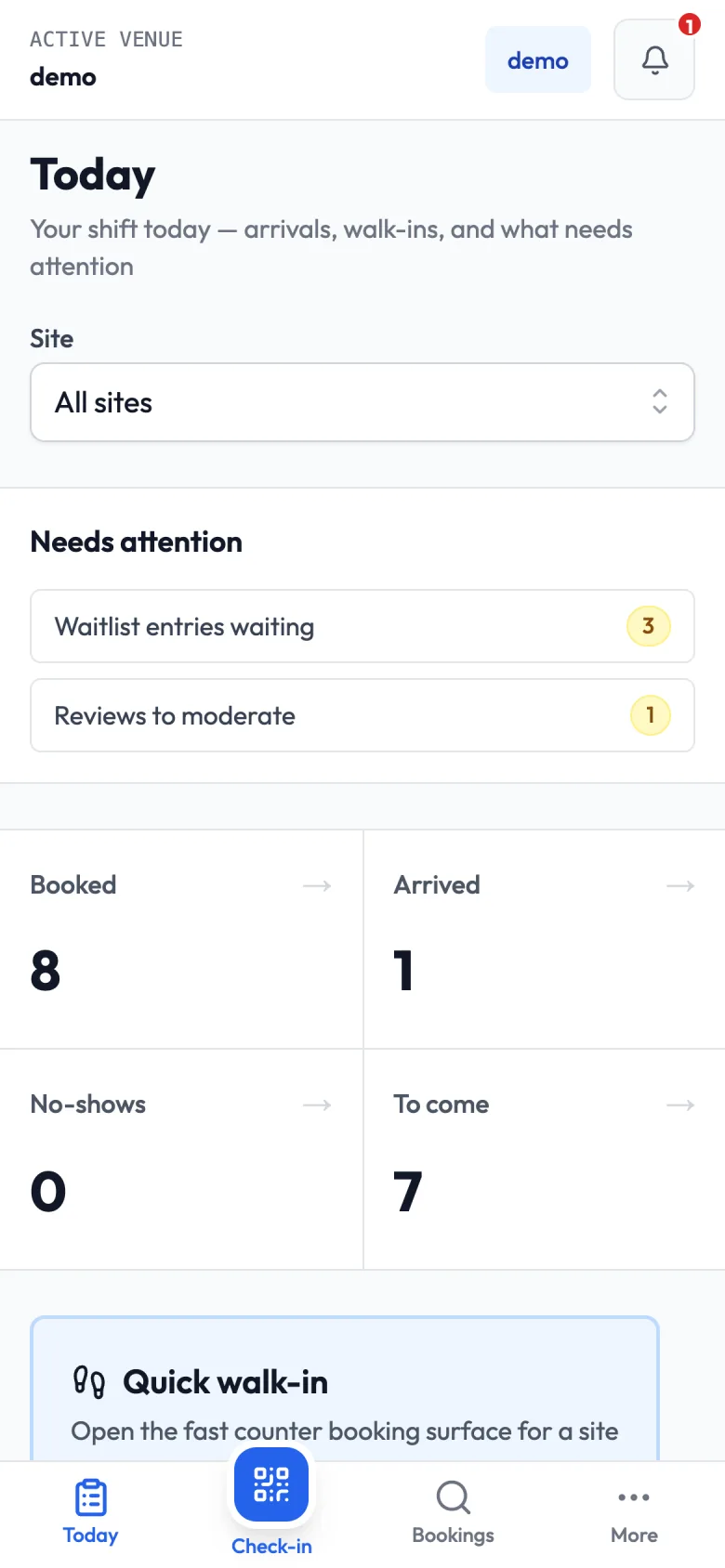
On a booking's detail page, a Next step bar stays pinned to the bottom of the screen. It shows the main action for the booking's current state, such as Mark as Arrived or Mark as Completed, so you don't have to scroll down to find it.
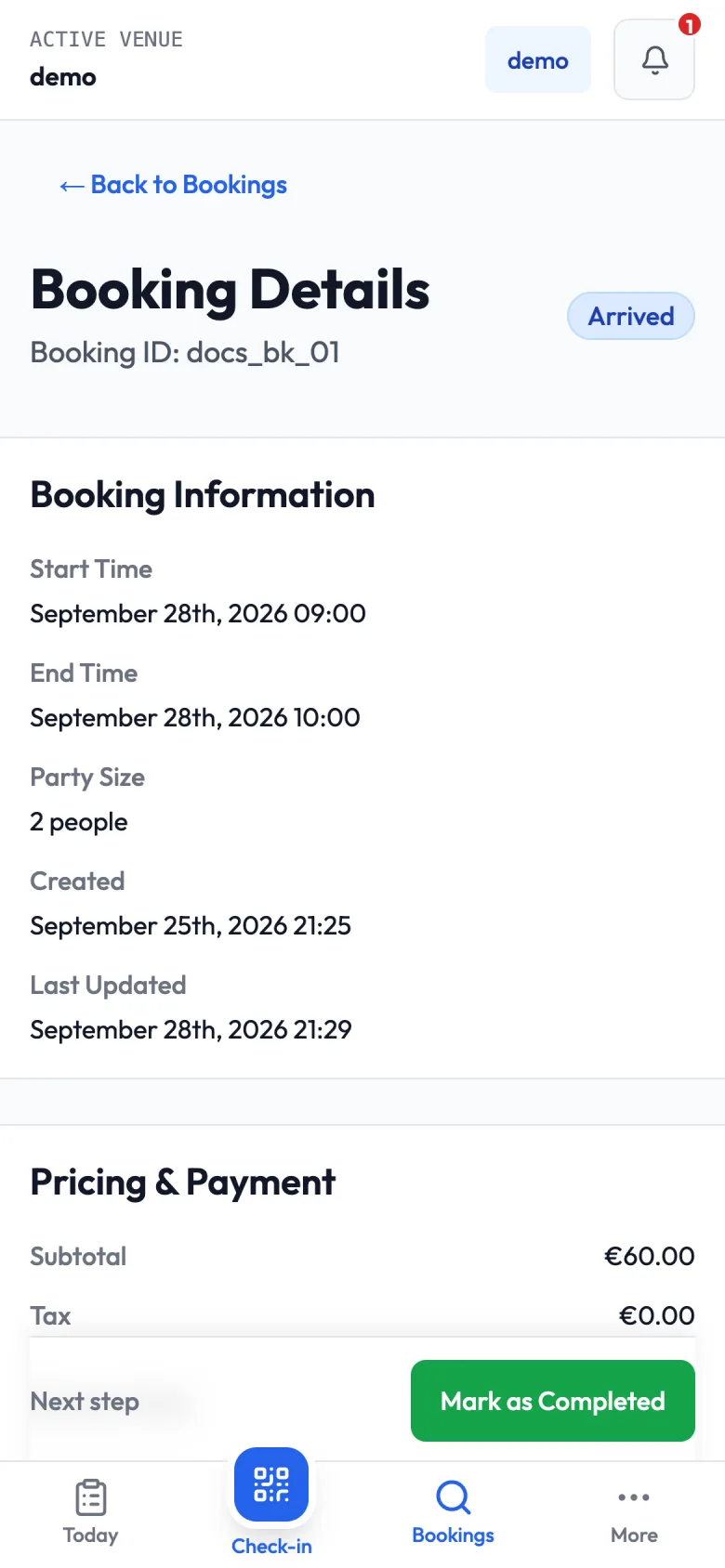
Everything not in the tab bar is under More. Setup-heavy pages, such as products, pricing and settings, are grouped under Configure on desktop. You can open them on a phone, but they are easier to use on a computer. See Getting around the admin.
Install the admin on your home screen
Once installed, the admin gets its own icon and opens full screen, without the browser's address bar. It always opens on the Today page.
Android (Chrome and similar browsers)
- Open the admin in the browser and sign in.
- A card appears at the bottom of the screen: Install Sessiq Admin, with the text "Add to your home screen for quick access".
- Tap Install, then confirm in the browser's dialog.
If you close the card with Dismiss (the ×), it won't be shown again on that device. You can still install from the browser's own menu, usually Add to Home screen or Install app.
iPhone and iPad (Safari)
iPhones don't offer a one-tap install, so the card shows instructions instead: Tap the share icon then "Add to Home Screen".
- Open the admin in Safari and sign in.
- Tap the Share icon in Safari's toolbar.
- Choose Add to Home Screen, then Add.
- From now on, open Sessiq from its home screen icon.
On iPhone and iPad, push notifications only work in the installed app, opened from the home screen icon. They don't work in a Safari tab.
Updates
When a new version of the admin is available, a bar appears: A new version is available. Tap Reload to switch to it. The app never updates in the middle of what you're doing without asking first.
If the phone loses its connection, the app shows a "You're offline" page instead of an error. It works again as soon as you're back online.
Turn on push notifications
Push notifications are set up per device. Turning them on for your phone doesn't affect your colleagues' phones or your other devices.
- Tap More in the tab bar.
- Scroll to Account and find Notifications. It shows Off when notifications aren't on for this device.
- Tap Enable.
- When your phone asks whether Sessiq may send notifications, allow it.
The row now reads On — you'll get alerts on this device.
Choose what you're notified about
When notifications are on, a Notify me about list appears under the row. Each switch can be turned on or off separately for this device, and all three start on:
- New bookings: a booking has been confirmed. The notification shows the product, time, party size and booking reference.
- Cancellations: a booking has been cancelled.
- Waitlist seats opening: a seat opened up and customers on the waitlist have been offered it.
Tapping a booking notification opens that booking in the admin. Tapping a waitlist notification opens Today.
Notifications cover the whole business, not just one site: each device with notifications on receives alerts for bookings at all your sites.
Check that it works
Tap Send test under the switches. The link changes to Test sent and a test notification is sent to every device where you have notifications turned on.
Turn notifications off
Go to More → Notifications and tap Turn off. The device stops receiving alerts straight away. Signing out doesn't turn notifications off, so tap Turn off first if you're handing the phone to someone else.
If notifications can't be turned on
Sometimes the Notifications row shows a message instead of an Enable button:
| Message | What to do |
|---|---|
| Add Sessiq to your home screen first, then open it from there to enable notifications. | You're on an iPhone or iPad in a Safari tab. Install the admin, then open it from the home screen. |
| Notifications are blocked. Allow them in your browser settings to enable. | You (or someone) declined the permission earlier. Allow notifications for Sessiq in the phone's or browser's settings, then come back and tap Enable. |
| Notifications aren't available on this device. | The browser doesn't support push notifications, or push isn't available for your account. Try an up-to-date Chrome or Safari, or contact Sessiq support. |
| Something went wrong — try again | The request failed, often because the connection dropped. Try again. |