Room closures and maintenance
Sometimes a room or other resource can't be used: a deep clean, a repair, a private event. A closure blocks it for that time, so customers can't book it.
Closures are managed on the Resource Maintenance page. Open it from System → Resource Maintenance in the sidebar. The System menu is only shown to owners and admins, and only on a computer.
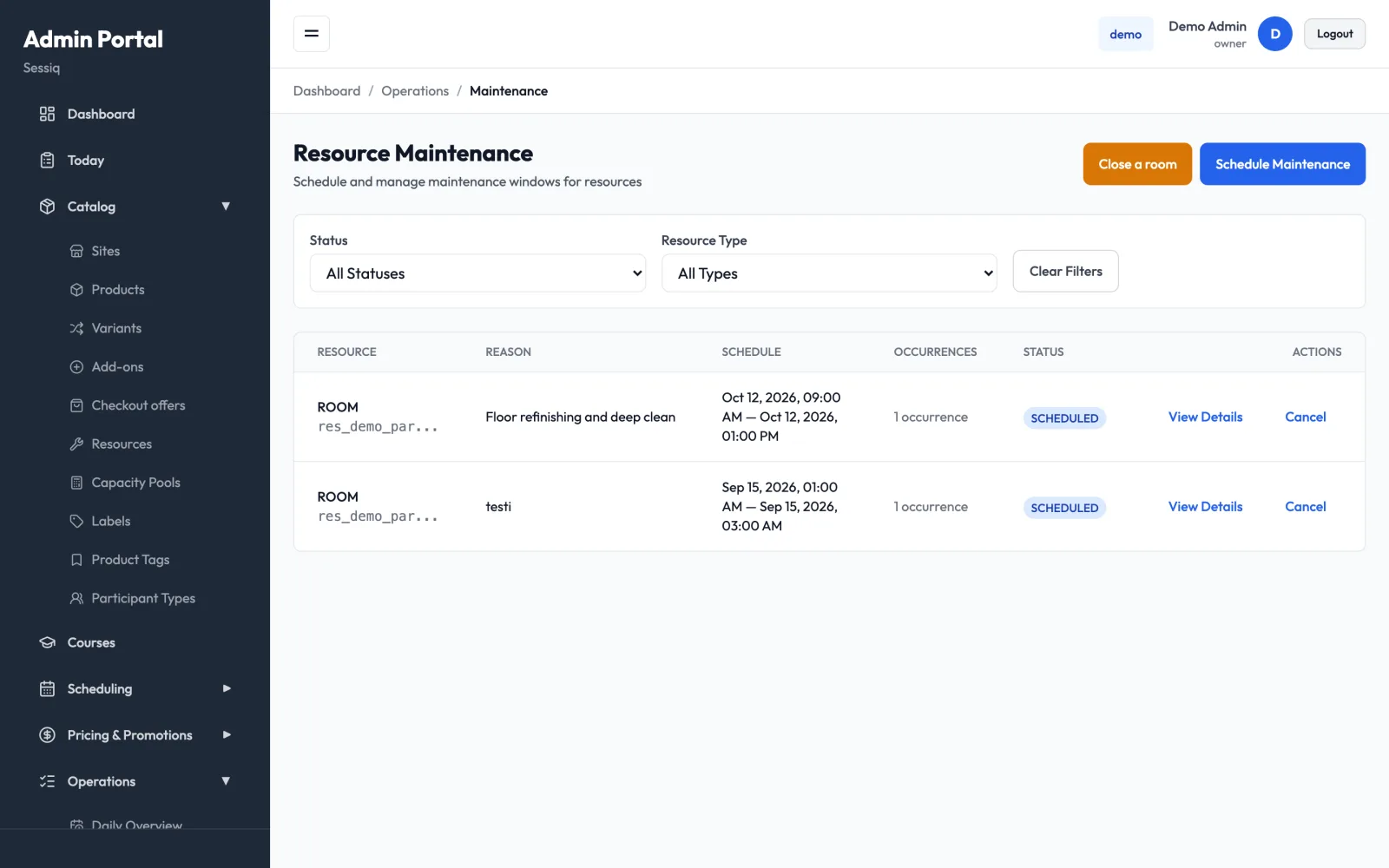
There are two ways to create a closure:
- Close a room: the quick way to block a room, once or on a repeating pattern.
- Schedule Maintenance: for other kinds of resource, such as a whole site, a product, a capacity pool or a piece of equipment.
Close a room
- Press Close a room.
- If you have several sites, use Filter by site to shorten the list. Then choose the Room. Rooms are the resources you set up as rooms. See Resources and rooms.
- Choose the Closure type:
- Single window: one closure with a Start and End. The form suggests a two-hour window to begin with.
- Multiple slots: several separate windows. Use + Add slot to add one, and the remove button to drop one.
- Recurring weekly: the same hours on chosen weekdays. Pick the days under Repeat on, set From time and To time, then the First date and Last date.
- The form shows how many occurrences will be created. One closure can have up to 366.
- Enter a Reason (required), for example "Floor refinishing".
- The form checks for existing bookings in the room at those times. If any overlap, a warning tells you how many.
- Press Close room.
The room is then unavailable at those times, and customers can't book it.
Closing a room does not cancel or notify bookings that are already in that time. If the warning shows overlapping bookings, move or cancel them yourself from the Bookings page.
Schedule maintenance for other resources
- Press Schedule Maintenance.
- Choose the resource type: Site, Product, Pool, Equipment or Slot.
- Choose the resource. For a slot, you enter its slot ID instead.
- Enter a reason, and the start and end date and time.
- Press Check for Conflicts to see whether any bookings fall inside the window. The result shows either No Conflicts or how many bookings are affected. Those bookings aren't changed automatically. Contact the customers and reschedule or cancel as needed.
- Press Schedule Maintenance.
Find and review closures
The table shows one row per closure you created. A weekly closure with twenty dates is one row. Each row shows the resource, the Reason, the Schedule (the time, or a summary of the pattern), the number of Occurrences and the Status.
Use the Status and Resource Type filters to narrow the list, and Clear Filters to reset them.
| Status | Meaning |
|---|---|
| Scheduled | The closure hasn't started yet. |
| Active | The closure is happening now. |
| Completed | The closure has ended. |
| Cancelled | The closure was cancelled before it ended. |
For a closure with several occurrences, the status shows the most relevant one: Active if any occurrence is happening now, otherwise Scheduled if any are still to come.
View Details shows the resource, status, reason, start and end, and the list of Affected Bookings, with a mark for customers who have been told.
Cancel a closure
Press Cancel on the row and confirm. The resource can be booked again straight away.
For a closure with several occurrences, Cancel cancels every occurrence that is still scheduled or active, all in one go. Occurrences that have already finished stay in the history.
Tips
- Always write a clear reason. Your colleagues see it in the list, and it helps later when you're looking back.
- For a regular weekly slot that is never bookable, such as a staff meeting, change the schedule instead of adding a recurring closure. See Schedules.