Daily Overview
Daily Overview shows all your bookings for a day, a week or a month in one place, with revenue and utilisation alongside. Use it to plan the day ahead, see how busy a week looks, print a prep sheet for the kitchen, or export the day's bookings.
Open it from Operations → Daily Overview. On a phone, it's under More → Operations. The page itself is titled Operations Overview.
Front-desk staff (members) and read-only users (viewers) land on this page when they sign in.
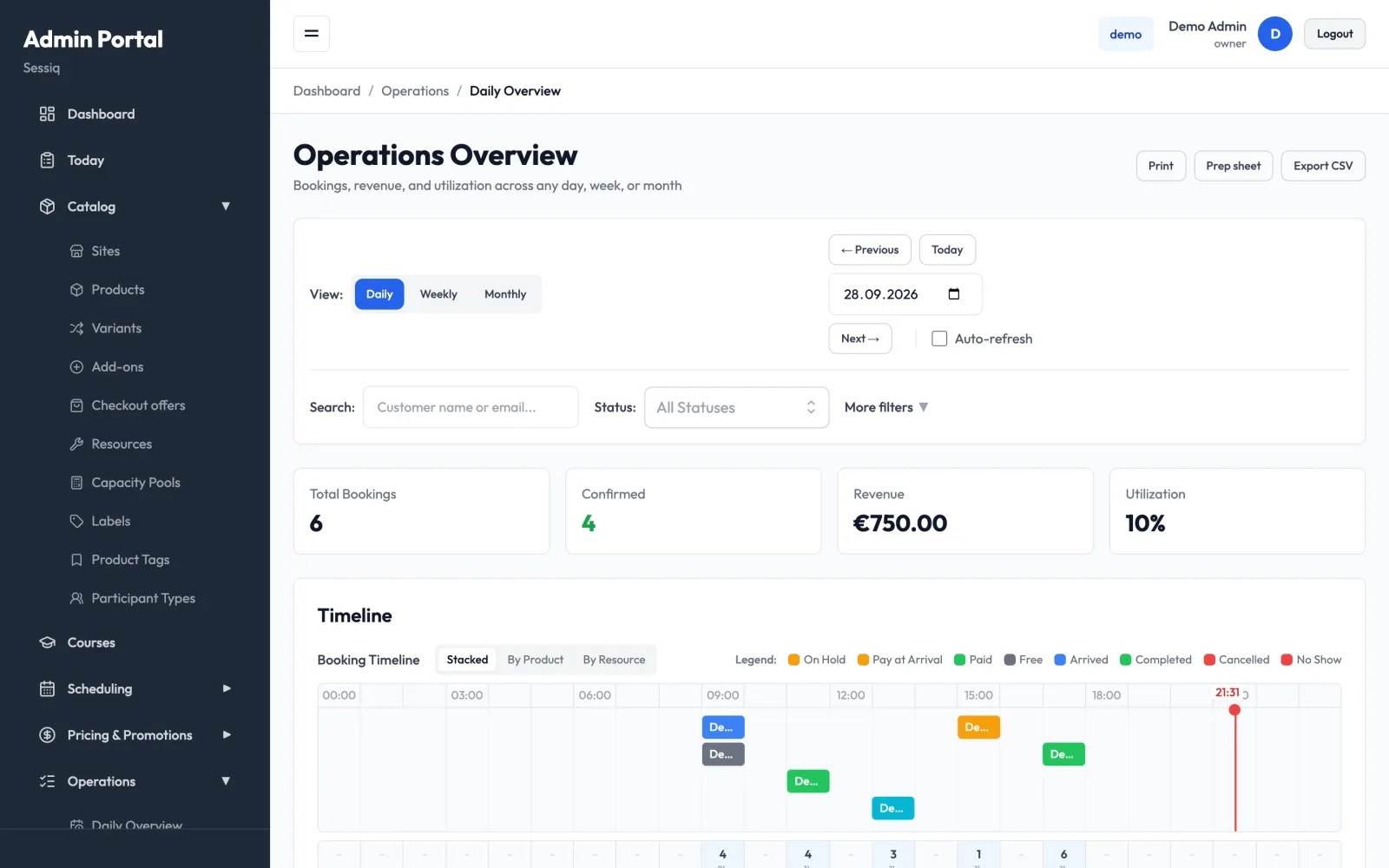
Pick a view and a date
- Under View, choose Daily, Weekly or Monthly.
- Move through time with ← Previous and Next → (a day or a week at a time), or Prev Month and Next Month in the monthly view.
- Jump to a specific date with the date picker, or back to the current day with Today.
In the weekly and monthly views, click a day to open it in the daily view.
The daily view
Totals
Four cards summarise the selected day:
- Total Bookings: every booking on the day.
- Confirmed: confirmed bookings.
- Revenue: the day's booking value.
- Utilization: how much of the day's capacity is booked.
On a phone, these cards move below the booking list so the bookings come first.
Upcoming arrivals
When you're viewing today, an Upcoming Arrivals panel lists confirmed guests due in the next hour. Switch between 30m and 60m to change how far ahead it looks. Click View to open a booking. To check guests in from a panel with buttons, use Today.
Timeline
The Timeline draws each booking as a block across a 24-hour grid. Hover over a block for its details, and click it to open the booking. When you're viewing today, a red line marks the current time.
Choose how the timeline is laid out:
- Stacked: all bookings on one track.
- By Product: one row per product.
- By Resource: one row per room or resource, with an Unassigned row for bookings that don't use one.
The Legend explains the block colours: On Hold, Pay at Arrival, Paid, Free, Arrived, Completed, Cancelled and No Show.
Under the grid, a row of totals shows how many guests are booked in each hour, with the number of bookings underneath. Hover over an hour to see both figures.
Below the timeline, Bookings by Product shows how many bookings each product has on the day.
On a phone, the 24-hour grid doesn't fit, so the timeline becomes a simple list in time order. Tap a row to open the booking.
Prep totals
If the day's bookings include add-ons, a Prep totals card adds up how many of each add-on you need to prepare. Cancelled and no-show bookings aren't counted.
All bookings
All Bookings lists every booking on the day with its time, product, site, customer, party size, status and total. Click a column header to sort by it. Click a row to open the booking.
Quick actions on each row:
- Arrived: check in a confirmed booking.
- No Show: mark the booking as a no-show, after you confirm.
- Cancel: cancel a booking that is on hold or confirmed.
- View: open the booking.
Cancel acts straight away, without asking you to confirm. Check you're on the right row first. For cancellations that need a reason, a refund or a customer message, open the booking and cancel it from there. See Bookings.
You can move through the list with the keyboard: ↑/↓ or j/k to move, Enter to open a booking, Home/End to jump to the first or last row, Esc to clear the selection.
The weekly view
The weekly view shows seven days side by side, starting from the selected date. Each day shows Total Bookings, Confirmed and Arrived, any Hold, Cancelled and No Show bookings, plus Revenue, Utilization, the Peak Hour and the Top Product. Today is marked Today.
The monthly view
The monthly view shows a calendar for the month, with each day's bookings and utilisation. Days are coloured by how busy they are. The Utilization Legend explains the colours.
Summary cards above the calendar show the month's Total Bookings, Total Revenue and Avg Utilization, the number of Busy Days (over 75% utilisation) and Slow Days (under 25%), and Active Days.
Filter the bookings
- Search: type a customer's name or email to narrow the booking list.
- Status: pick one or more statuses (Hold, Confirmed, Arrived, Cancelled, No Show, Completed). Leave it on All Statuses to see everything.
- More filters opens three more:
- Site: one site, or All Sites.
- Product: one product.
- Source: Online, Walk-in, Phone or All sources.
Clear Filters removes them all. On a phone, the filters are folded behind a Filters button that shows how many are active.
The weekly view uses the site, product and source filters, but not the status filter.
Print, prep sheet and export
The buttons at the top right of the page:
- Print: prints the page as you see it.
- Prep sheet (daily view only): prints a sheet for kitchen and party preparation. It lists the prep totals for each add-on, then each booking with its time, product, party size, add-ons, dietary needs and notes. Cancelled and no-show bookings are left out.
- Export CSV: downloads the day's bookings as a spreadsheet file with booking ID, product, site, customer, party size, start and end time, status and total. The button is disabled when the day has no bookings.
Keep the page up to date
Tick Auto-refresh to reload the data automatically, which is handy on a screen at reception. Choose how often: every 30s, 1m, 2m or 5m. A Live label shows while auto-refresh is on. It stays on only while the page is open.