Party invitations
For some bookings, typically children's birthday parties, the venue lets you invite your guests online. You add the parents' email addresses, invitations are emailed to them, and each family answers with an RSVP. You can see who's coming and any allergies in one list.
Invitations are only available when the venue has turned on Guest party invitations for the experience you booked.
For the host: your guest list
Opening the guest list
The guest list is opened from your booking. When invitations are available, your booking page shows a Manage your party invitations card with a Manage guest list button. The link is personal to your booking and works without signing in for 30 days, so don't share it with guests.
If you can't find the Manage guest list button, ask the venue for the link to your guest list.
Using the guest list
The Party guest list page shows two totals at the top: Confirmed children (children whose family answered Yes, out of the most your booking allows) and Invitees.
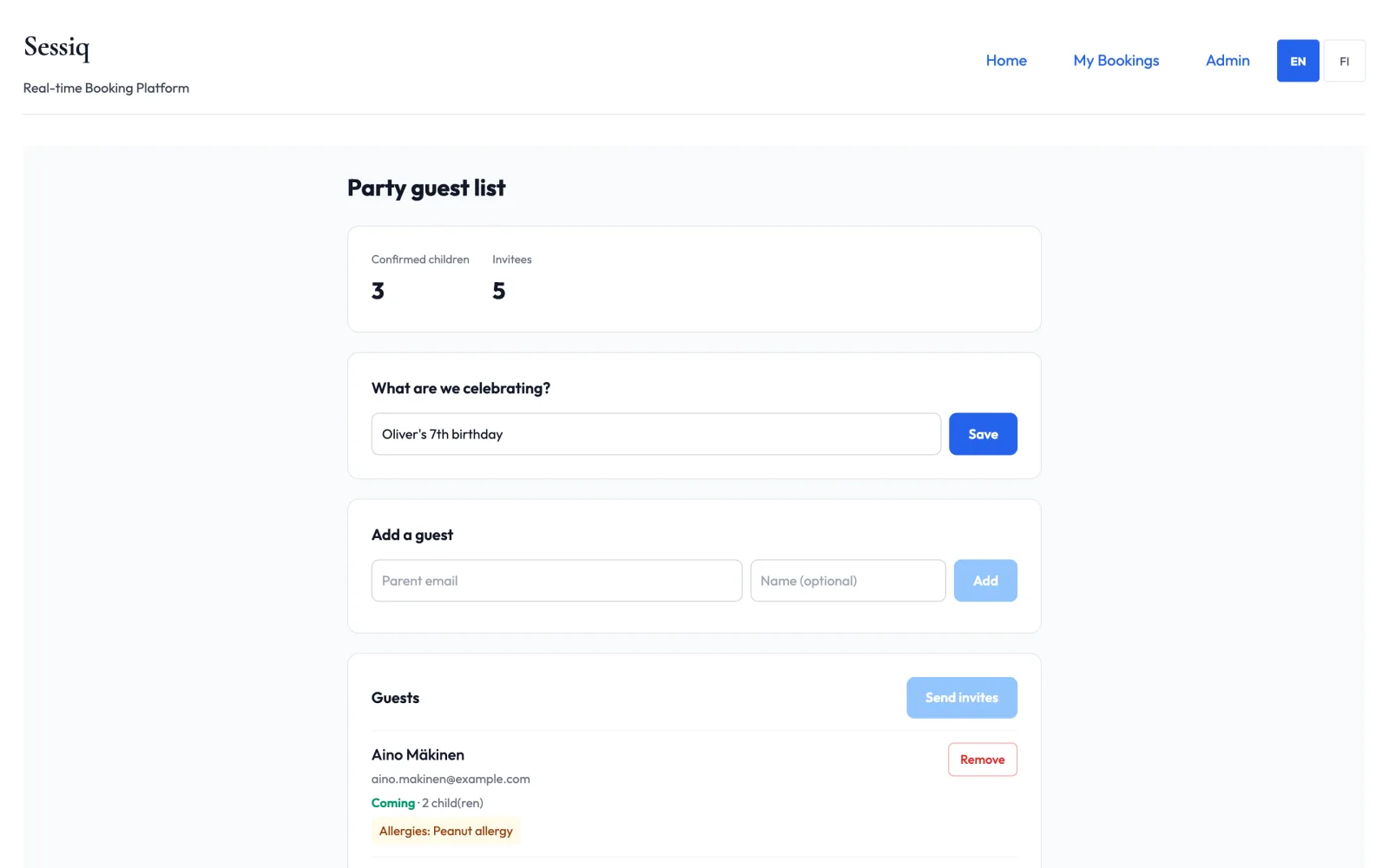
- Under What are we celebrating?, enter a title such as "Emma's 7th birthday" and click Save. This becomes the heading of the invitation.
- Under Add a guest, enter a Parent email and, if you like, a name, and click Add. Repeat for each family.
- Click Send invites. Invitations are emailed to everyone who hasn't been invited yet. If you add more guests later, click it again. Only the new guests get an email.
Each guest in the Guests list shows their answer (Coming, Not coming, Maybe or No reply yet), how many children are coming, and any allergies. Guests you haven't sent to yet are marked not yet invited.
Remove takes a guest off the list. Their invitation link stops working.
Invitations are sent by email only. You can't copy an invitation link or resend an invitation to someone who already has one.
For guests: answering an invitation
The invitation email has a personal link. It opens the party page without signing in.
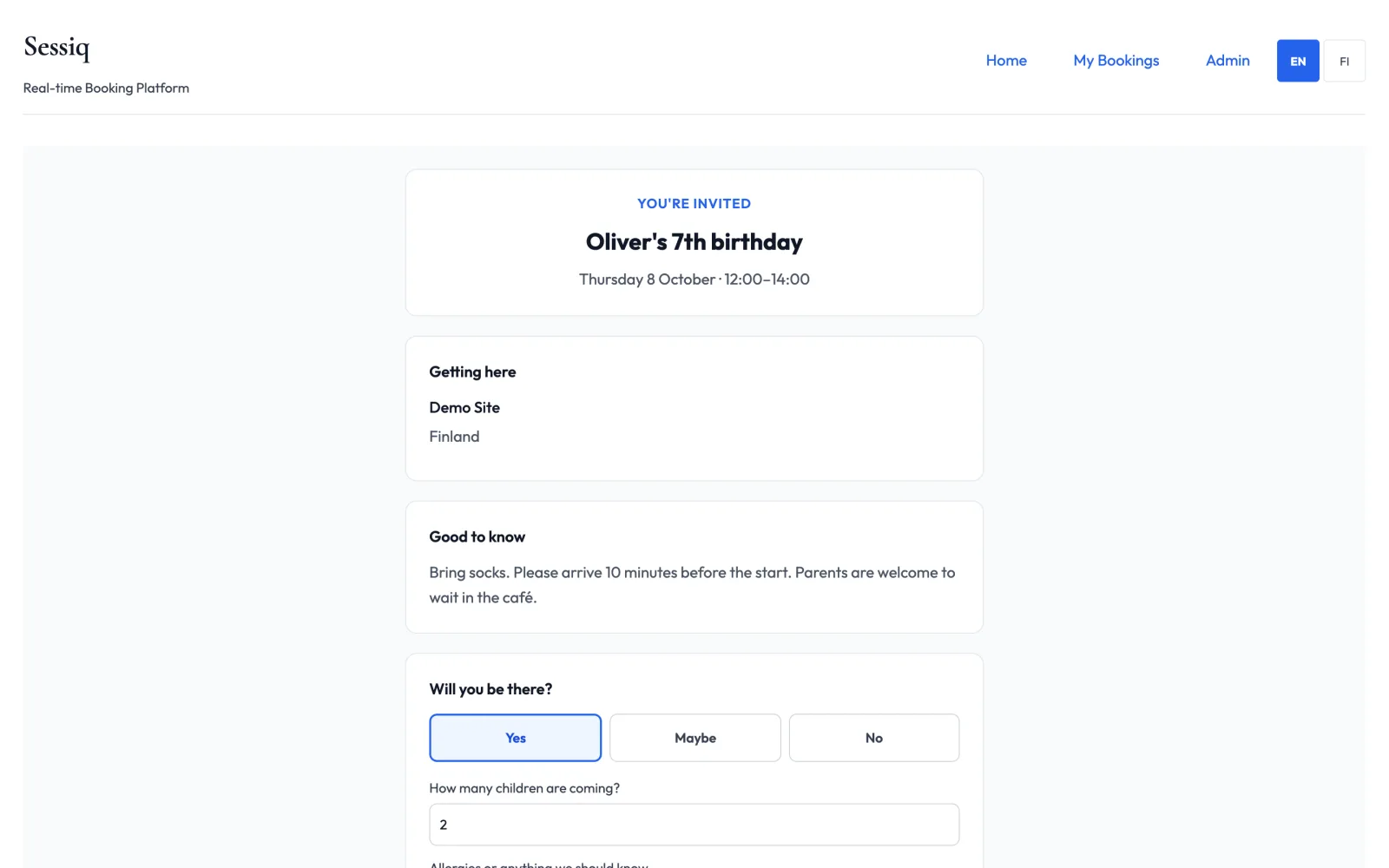
The page shows:
- You're invited, the party's title, and the date and time
- Getting here: the venue's address and arrival details
- Good to know: any notes from the venue
To answer, under Will you be there? choose Yes, Maybe or No. For Yes or Maybe, also fill in How many children are coming? and Allergies or anything we should know. Then click Send RSVP. You'll see Thanks — your RSVP has been saved. and get a confirmation email.
You can change your answer using the same link until the party starts.
The checkbox about marketing emails is optional and off by default. You can RSVP without ticking it.
Carpool noticeboard
The Carpool noticeboard lets families offer or ask for lifts. Write your message and click Post to noticeboard. Posts don't show your name, so include a way to contact you if you want replies. Lifts are arranged directly between families. The venue isn't involved.
Related
- Managing your bookings
- Products in the operator guide