Promotions and vouchers
Promotions are discounts: either a code the customer types in at checkout (such as SUMMER25), or a discount that applies automatically with no code. Vouchers are codes with a money value, such as gift cards, loyalty credits and promotional vouchers, that customers spend at checkout.
Both live under Pricing & Promotions in the admin navigation.
The promotions list
Open Pricing & Promotions → Promotions.
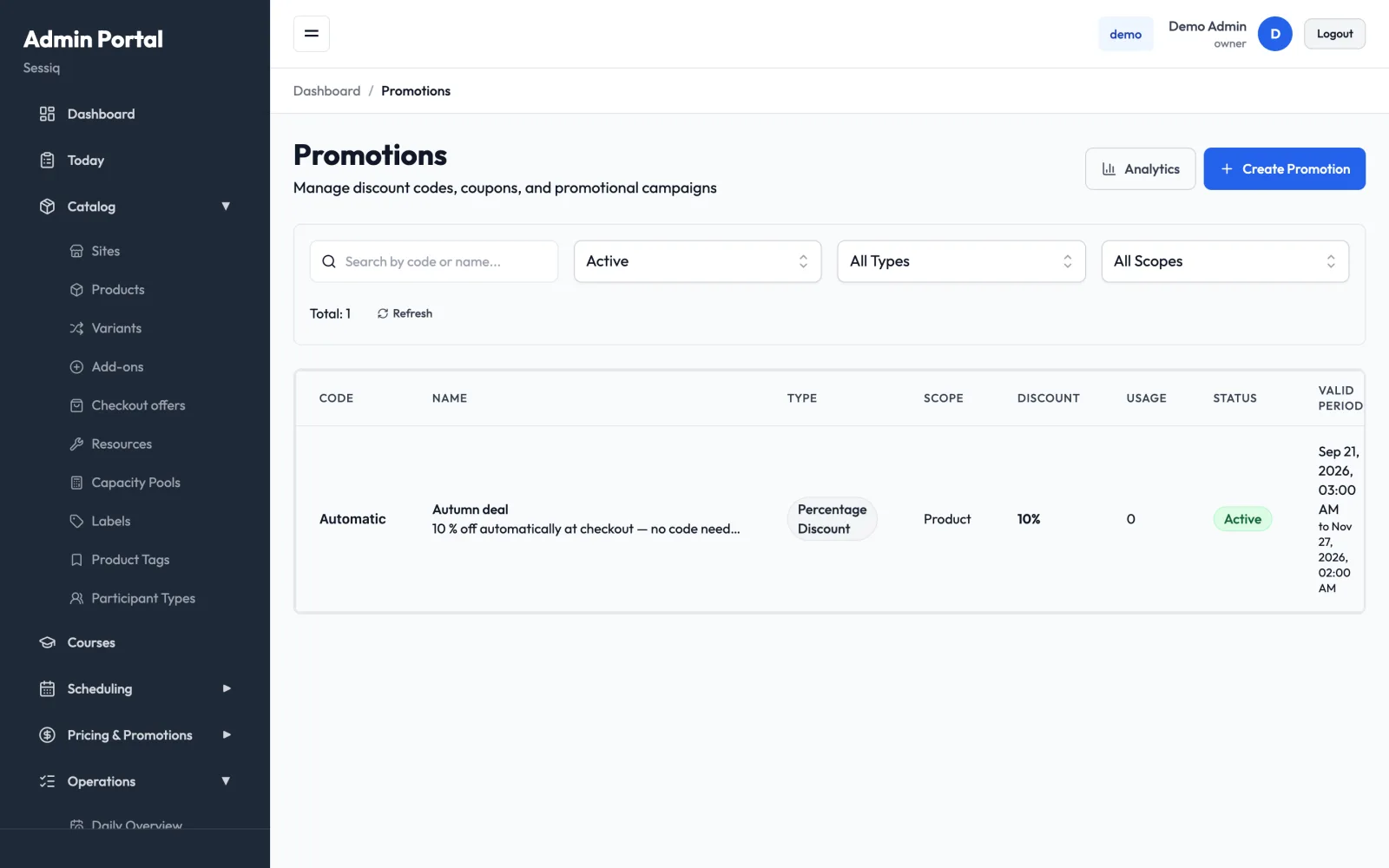
Each row shows the Code (or Automatic for codeless promotions), Name, Type, Scope, Discount, Usage (uses so far, against the limit if there is one), Status and Valid Period. Use the search box and the status, type and scope filters to narrow the list, and Refresh to reload it.
Row actions:
- View Statistics: total uses, unique customers, total discount given and the most recent bookings that used the promotion
- Duplicate: copy the promotion, which is a quick way to run a similar offer again
- Edit
- Delete: if the promotion has already been used, it is deactivated instead of deleted, so your booking history stays intact
Create a code-based promotion
-
Click Create Promotion.
-
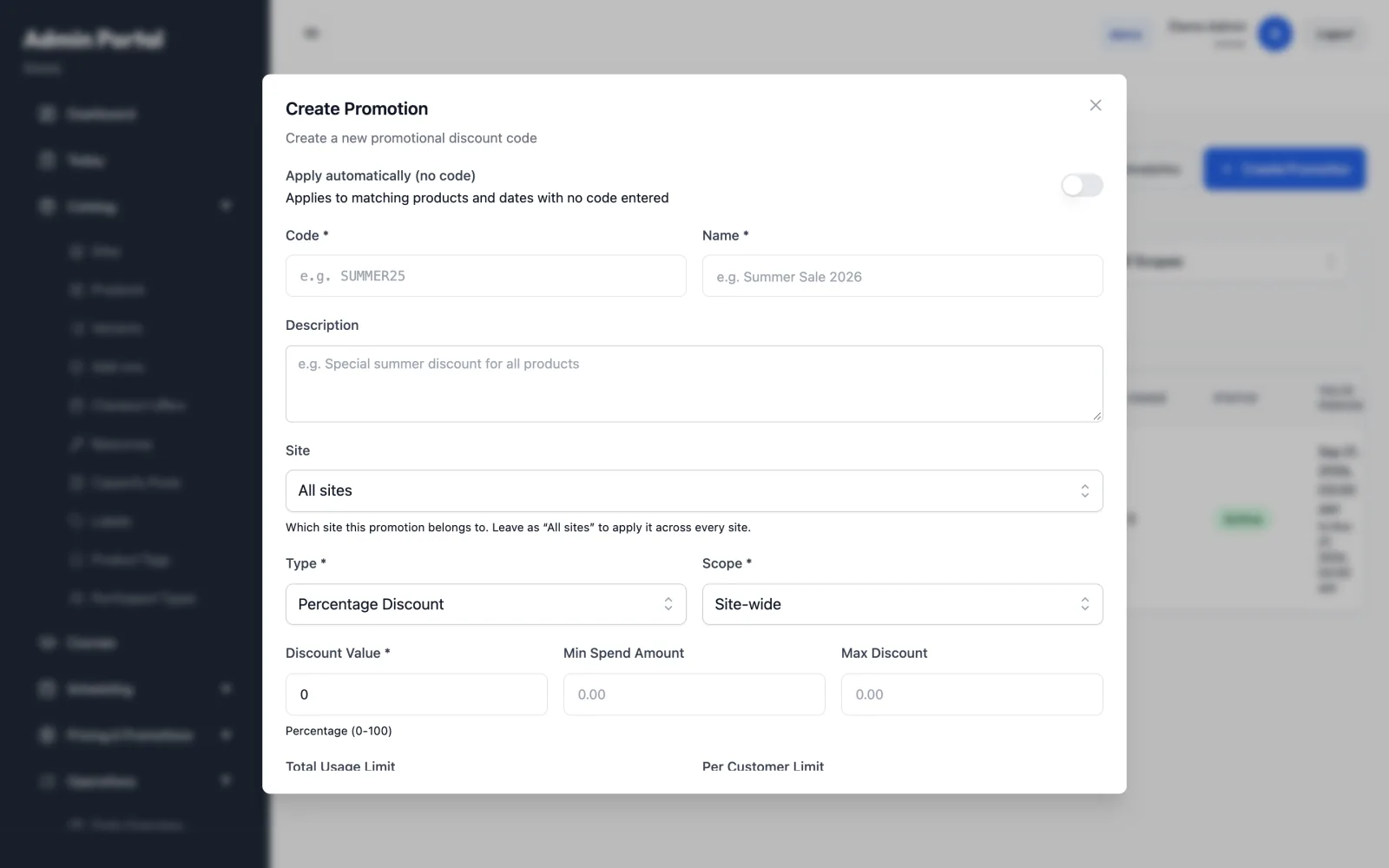
Enter the Code customers will type, for example
SUMMER25, and a Name for your own reference. Add a Description if it helps. -
Choose the Site. Leave it as All sites to use the promotion at every site.
-
Choose the Type:
- Percentage Discount: for example 20% off. Enter a Discount Value from 0 to 100.
- Fixed Amount: for example €10 off. Enter the amount.
The other types in the list are marked "(not implemented yet)" and can't be selected.
-
Choose the Scope:
-
Site-wide: the promotion works on any booking.
-
Product: tick one or more Products. The promotion applies when the cart contains any of the selected products, and the discount is taken off those products only, never off add-ons such as catering. For example, 25 % off a party of 10 × 23 € tickets with a 10 × 12,90 € treat pack is 57,50 € (25 % of 230 €), and adding catering later doesn't change it. A visit pass on the same booking comes off first.
To discount the whole booking, add-ons included, use Site-wide instead.
-
-
Set the limits you need (all optional):
- Min Spend Amount: the booking must be at least this much, add-ons included
- Max Discount: a cap on the discount, useful for percentage promotions
- Total Usage Limit: how many times the code can be used in total. Leave it empty for unlimited.
- Per Customer Limit: how many times one customer can use it
-
Set the dates (see below).
-
Set the options:
- Active: the promotion is switched on
- Public: visible to customers, rather than admin-only
- Stackable: can be combined with other promotions
- Priority: promotions with a higher number are applied first. The default is 50.
-
Click Create Promotion.
Stick to Site-wide or Product as the scope. The other scope options in the list (Variant, Category, Booking) can't be targeted from this form.
Redemption dates and booking dates
A promotion has two separate date windows:
- Starts At and Expires At: when the code can be used, meaning the day the customer books and pays. Leave Expires At empty for no end date.
- Bookings valid from and Bookings valid to: which visit dates the promotion applies to. Leave both empty for no restriction.
For example, a code sold during a September campaign (Starts At 1 Sep, Expires At 30 Sep) could be valid only for visits in November (Bookings valid from 1 Nov, Bookings valid to 30 Nov).
Automatic promotions (no code)
Turn on Apply automatically (no code) at the top of the form to make a promotion apply by itself, with no code entered. The Code field disappears. In the list, these promotions show Automatic in place of a code.
An automatic promotion is applied when:
- it is Active and Public
- today is within Starts At to Expires At
- the visit date is within the booking-date window, if you set one
- the cart matches the Scope (for example, one of the selected products)
- the booking meets the Min Spend Amount, if you set one
A booking gets at most one automatic promotion. If several match, the one with the highest Priority wins.
Group conditions (participant types)
A promotion can depend on who is in the group, for example "adults half price when they bring a child". It works on automatic and code promotions, for products that use participant types.
- In the promotion form, open Participant condition.
- Under Required in the group, pick the participant types that must be there (for example Child) and the Minimum number. Keep Count only paying participants on so that a free toddler doesn't unlock the discount.
- Choose the Discounted participant type (for example Adult). It can't also be one of the required types.
- Under Discounted participants, choose All of that type, or A number per required participant: for example Discounted
1Per required1gives one discounted adult per child. - Set the Type and discount value as usual. They apply to each discounted participant's price: a percentage of it, or a fixed amount up to that price.
Label price wins (on by default for these promotions) skips the promotion when a slot label's price rule already changed the booking's price, so special-priced slots aren't discounted twice. A label that only tags a slot, without changing the price, doesn't block it.
A booking still gets one promotion: a group-condition promotion competes with codes and other automatic promotions in the usual way. If a customer enters a code whose group condition isn't met, they're told so. In the list these promotions carry a Group condition badge.
Promotion analytics
Open Pricing & Promotions → Promotion Analytics, or click Analytics on the promotions page. The summary cards show Total Promotions, Active Promotions and Total Uses. Pick a promotion under Select Promotion to see its details, performance (total uses, unique customers, total discount, average per use) and its latest 20 bookings. Export downloads the figures as a CSV file.
Vouchers
Open Pricing & Promotions → Vouchers. Voucher types are Single Use, Multi Use, Gift Card and Loyalty Credit. The list shows each voucher's Code, Type, Balance, Customer, Issued and Expires dates and Status. Filter by status, redeemed or not redeemed, type, or search by code or email.
Issue a voucher
- Click Issue Voucher.
- Enter a Code, click Generate, or leave the field empty to generate one automatically.
- Choose the Type and enter the Value (€). For multi-use vouchers, set the Usage Limit.
- Optionally add a Customer Email, an Expiration Date and internal Notes.
- Click Issue Voucher.
To create many at once, click Bulk Issue. Enter the Number of Vouchers (1-1000) and an optional Code Prefix, then click Generate Vouchers. A CSV file with all the new codes downloads automatically. To bring in codes from another system, use Import CSV. It lets you upload a file, preview the validation results and then import.
Manage vouchers
- View History: every booking the voucher was used on, with the amount used and the balance before and after
- Adjust Balance: add (positive) or remove (negative) value. A Reason is required.
- Edit: change the customer email, expiration date, notes or active status
- Deactivate or Reactivate
- Resend delivery email: for gift cards bought online, sends the delivery email again
Export CSV downloads the voucher list.
Voucher analytics
Pricing & Promotions → Voucher Analytics shows total, active and outstanding vouchers, total value issued and redeemed, the redemption rate, vouchers by type, the highest-value vouchers and recently issued vouchers.
Related
- Gift cards: selling gift cards online
- Campaigns: seasonal calendars that hand out codes
- Pricing: the prices that promotions discount